
Post
VPN Not Working? A Step-by-Step Troubleshooting Guide
Isolate VPN connection, routing, DNS and one-service failures. Follow an orderly troubleshooting process and prepare a useful, redacted support report.
VPNBLADE · PLAN SHORTLIST
Compare current VPN plans
Selected plan offers, not performance rankings. We may earn a commission through affiliate links. Monthly equivalents require the full payment shown.

ExpressVPN
Check your exact device setupExpressVPN Basic — 28-month introductory offer
USD 83.72 upfront · First 28 months, paid upfront
Get ExpressVPN deal Offer details & coupon conditions →Renewal & refund conditions
USD 99.95 annually after the initial 28-month term.
30-day money-back guarantee for new users; provider terms and purchase-channel conditions apply.

NordVPN
Apps across major device platformsNordVPN Basic — 27-month introductory offer
USD 94.23 upfront · First 27 months, paid upfront
Get NordVPN deal Offer details & coupon conditions →Renewal & refund conditions
USD 139.08 every year after the initial 27-month term at the current renewal price.
30-day money-back guarantee; provider eligibility, payment-channel and refund terms apply.

Surfshark
Households with multiple devicesSurfshark One — 27-month introductory offer
USD 67.23 upfront · First 27 months, paid upfront
Get Surfshark deal Offer details & coupon conditions →Renewal & refund conditions
Automatic renewal after the introductory term at the then-applicable rate. Confirm the chosen bundle’s next invoice and billing interval before purchase; no numeric renewal amount was verified.
30-day money-back guarantee; purchase-channel and provider eligibility conditions apply.

PureVPN
Published subscription offerPureVPN Standard — 27-month prepaid offer
USD 58.20 upfront · First 27 months, paid upfront
Get PureVPN deal Offer details & coupon conditions →Renewal & refund conditions
Checkout displays USD 2.15/month after 27 months. This is the provider’s renewal-rate label, not a verified future invoice. The next charge amount and billing interval were not separately established; confirm both before paying.
31-day money-back guarantee advertised; provider eligibility and refund terms apply.

VeePN
Published subscription offerVeePN Basic — 28-month introductory offer
USD 55.72 upfront · First 28 months, paid upfront
Get VeePN deal Offer details & coupon conditions →Renewal & refund conditions
Card/PayPal checkout quotes automatic renewal at USD 59.76 every 12 months after the initial 28-month period. Future renewal prices can change.
Thirty-day refund window for the original purchase, subject to terms. Rebilling and previously refunded accounts are excluded; plan extensions or added licenses can waive eligibility.
In this article
When a VPN is not working, first identify whether the app cannot connect, the tunnel connects but internet access fails, or only one website or application has a problem. These are different failure points. Confirm the ordinary network works, check the VPN’s status and account, try one supported server change, then investigate routing and DNS without changing everything at once.
A disciplined sequence is more useful than immediately reinstalling software or resetting the router. Keep a note of the device, operating system, app version, network, exact error, and the last change before the problem began. Those details help you compare results and give support a useful report. Avoid sharing passwords, private keys, full IP addresses, or unredacted diagnostic logs publicly.
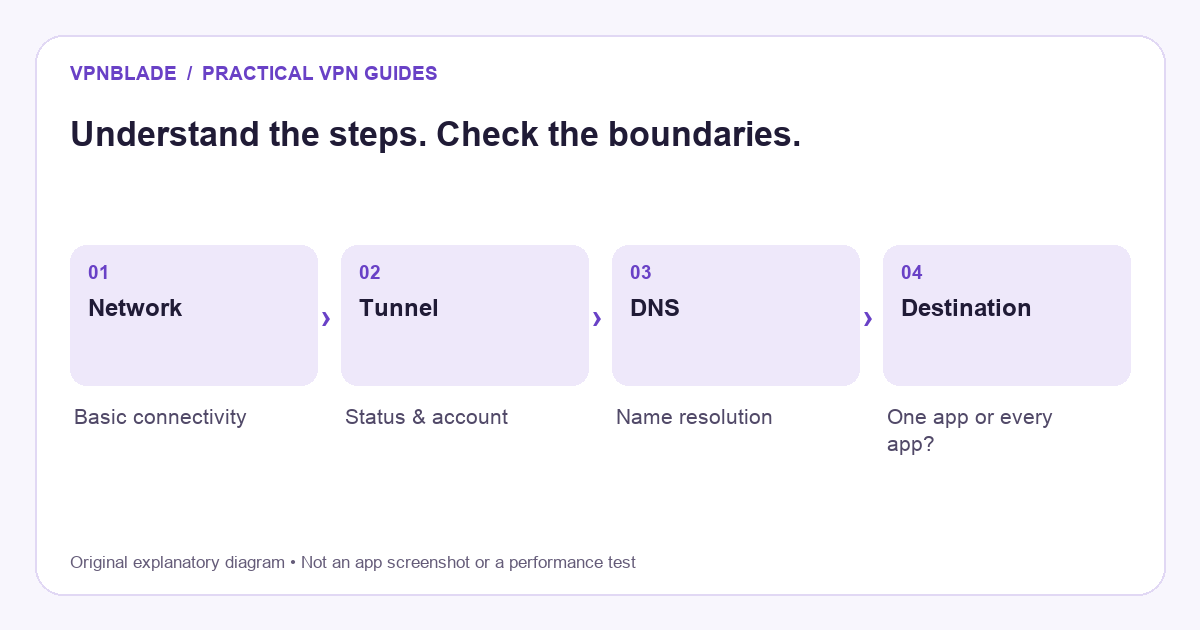
Quick steps
- Classify whether the failure is network, tunnel or one destination.
- Check the account, connection status and one alternate server.
- Inspect blocking, routing and DNS one change at a time.
- Send a precise, redacted support report if unresolved.
First classify the failure
If the client never establishes a tunnel, focus first on connectivity, authentication, and the selected gateway. If it reports connected but ordinary browsing fails, investigate routing, DNS, and blocking settings. If other browsing works but one service fails, inspect that application’s behaviour and compatibility. A single word such as “broken” hides the evidence needed to choose the next step.
Also distinguish poor performance from no connection. A video pause, high latency, and an authentication error do not have the same cause. Write down what actually happened rather than beginning with a diagnosis. If the issue is simply an unexpected location result, our IP-address explanation may resolve the confusion before you change the setup.
VPNBLADE · PLAN SHORTLIST
A current plan to consider
Selected plan offers, not performance rankings. We may earn a commission through affiliate links. Monthly equivalents require the full payment shown.
ExpressVPN
Check your exact device setupExpressVPN Basic — 28-month introductory offer
USD 83.72 upfront · First 28 months, paid upfront
Get ExpressVPN deal Offer details & coupon conditions →Renewal & refund conditions
USD 99.95 annually after the initial 28-month term.
30-day money-back guarantee for new users; provider terms and purchase-channel conditions apply.
NordVPN
Apps across major device platformsNordVPN Basic — 27-month introductory offer
USD 94.23 upfront · First 27 months, paid upfront
Get NordVPN deal Offer details & coupon conditions →Renewal & refund conditions
USD 139.08 every year after the initial 27-month term at the current renewal price.
30-day money-back guarantee; provider eligibility, payment-channel and refund terms apply.
Surfshark
Households with multiple devicesSurfshark One — 27-month introductory offer
USD 67.23 upfront · First 27 months, paid upfront
Get Surfshark deal Offer details & coupon conditions →Renewal & refund conditions
Automatic renewal after the introductory term at the then-applicable rate. Confirm the chosen bundle’s next invoice and billing interval before purchase; no numeric renewal amount was verified.
30-day money-back guarantee; purchase-channel and provider eligibility conditions apply.
PureVPN
Published subscription offerPureVPN Standard — 27-month prepaid offer
USD 58.20 upfront · First 27 months, paid upfront
Get PureVPN deal Offer details & coupon conditions →Renewal & refund conditions
Checkout displays USD 2.15/month after 27 months. This is the provider’s renewal-rate label, not a verified future invoice. The next charge amount and billing interval were not separately established; confirm both before paying.
31-day money-back guarantee advertised; provider eligibility and refund terms apply.
VeePN
Published subscription offerVeePN Basic — 28-month introductory offer
USD 55.72 upfront · First 28 months, paid upfront
Get VeePN deal Offer details & coupon conditions →Renewal & refund conditions
Card/PayPal checkout quotes automatic renewal at USD 59.76 every 12 months after the initial 28-month period. Future renewal prices can change.
Thirty-day refund window for the original purchase, subject to terms. Rebilling and previously refunded accounts are excluded; plan extensions or added licenses can waive eligibility.
Check the underlying connection
Use an ordinary, non-sensitive browsing task to establish whether the access network works in the intended state. If you deliberately disconnect the VPN for this comparison, understand whether a kill switch or system rule blocks traffic without it. Losing access while that rule remains active can be expected behaviour, not proof the internet provider is offline.
On mobile devices, note whether you are using Wi-Fi or cellular data. A phone can change networks during a test and make the results misleading. If a hotel or café requires a captive-portal login, complete the legitimate network access process before evaluating the tunnel. Do not disable required organisational controls or bypass access rules to force a connection.
Read the client’s actual status
Open the provider app and inspect its status and any error message. A chosen server label is not the same as a completed connection. Closing the app window or dismissing its notification does not necessarily stop the service. Conversely, a disconnected app does not prove no other VPN-based security tool or router tunnel is affecting the route.
Check the named system configuration when needed. Google’s Android VPN help explains the relationship between system settings and app-managed connections. Windows also exposes saved profiles and connection state through its VPN settings. Use the controls for the correct configuration rather than deleting unrelated network entries.
Check account and authentication details
Confirm that you are using the intended account and that its subscription or entitlement is active. A provider may use separate credentials for native apps and manual router configurations. A password that works on the website is not necessarily the credential expected by an exported OpenVPN profile. Follow the documentation for the method you actually configured.
If authentication fails, use the provider’s official recovery process rather than trying credentials in a third-party tool. Consider whether a managed account requires a certificate, one-time code, or administrator-supplied configuration. A personal VPN subscription cannot replace an employer’s access method. Do not post account identifiers or recovery information in a public troubleshooting thread.
Try one supported server change
If the network works and the account is valid, try another ordinary server supported by the provider. Begin with a nearby suitable location rather than a specialty mode. A single gateway can have a temporary problem without proving the entire service is unavailable. Record the original and replacement labels so that the comparison can be repeated.
Do not change server, protocol, DNS, and routing exceptions simultaneously. If the connection improves after four changes, you still do not know which one mattered. A step-by-step approach can feel slower initially but usually produces a more useful explanation. Check the provider’s public status or support information for a known issue before making increasingly broad changes.
Understand kill switches and persistent blocking
A kill switch can intentionally prevent traffic outside the expected tunnel. Some implementations focus on an unexpected drop; others can block traffic whenever the VPN is off. Android’s persistent connection controls and a provider’s own automatic rules can also interact. Read the current documentation for your platform rather than assuming every app uses the same definition.
If you temporarily alter a blocking setting for a non-sensitive test, record the previous value and restore your intended protection afterward. Do not leave it disabled simply because browsing resumes. The result tells you something about the failure policy, not whether unprotected routing is the right permanent solution. For device-specific controls, see the Android guide or iPhone switching guide.
Inspect DNS without random replacements
A tunnel can be established while name resolution fails. If an application reports that a site cannot be found, compare the symptoms with the provider’s DNS guidance. Custom browser resolvers, router settings, and other filtering applications can add complexity. There is no universal instruction to replace every resolver with one particular public service.
Start by noting custom settings and returning to the provider-supported configuration if appropriate for your device. Keep the original values so you can reverse the change. If only one browser fails, inspect its own settings before changing the entire household network. A DNS problem is a specific possibility to investigate, not a label to apply to every slow or blocked website.
Separate one-service failures from tunnel failures
A website can restrict VPN exit addresses, request additional verification, or rely on account and location signals independent of the tunnel. If ordinary browsing works but one destination does not, that is different from the device having no internet access. Check the destination’s rules and the provider’s current compatibility documentation without assuming access is guaranteed.
Do not bypass certificate warnings or enter false account information to force a service to work. A VPN changes routing, not the trustworthiness of a login page or the permissions attached to an account. If your goal is streaming, our streaming VPN guide explains why advertised support should not be treated as a promise of permanent access.
Look for overlapping networking tools
A device VPN, browser extension, local filtering app, corporate profile, and router tunnel can affect different parts of the path. Running several at once makes it harder to interpret an address check or connection failure. Identify each component and begin with a simple supported configuration on a device you control. Do not remove mandatory work software to simplify a personal test.
If a phone works on cellular data but not through the home router, investigate the network difference rather than reinstalling the phone app repeatedly. If only a router-routed device fails, inspect its policy and DNS configuration. Our router guide describes why a working router status indicator alone does not establish every device’s route.
Update and restart with a purpose
Check the supported app and operating-system versions, then consult official release or support information if the issue began after an update. A normal restart can clear some temporary state, but it is not a diagnosis. Avoid factory resets, unofficial installers, or firmware changes as the first response to a single connection error.
Before reinstalling, make sure you can recover the correct account and any manual configuration. Keep a note of the existing version and relevant settings. If the provider asks for logs, use its official support channel and review what the file contains. Share only the information needed for the issue, with sensitive values redacted where possible.
Prepare a support report that can be acted on
A useful report states the platform and app version, the type of network, the selected gateway, the exact error, and whether ordinary connectivity works. Include the sequence of changes and the result of each one. “Server A fails, server B connects, both checked on the same Wi-Fi network” is more actionable than “nothing works.”
Explain the scope too: every application, one browser, or one website. Mention a router tunnel or managed profile if relevant, without exposing its secrets. Do not claim to have tested steps you did not perform. A short, accurate record is better than a long checklist marked complete merely because you read it in a tutorial.
Decide whether to change providers only after isolating the issue
A compatibility limit, unresolved reliability problem, or missing control can justify choosing another service. But a second subscription will not fix a broken access network, wrong corporate credentials, or an application permission issue. Identify the unmet requirement before comparing alternatives. Our buying checklist helps turn the diagnosis into a practical acceptance test.
If you switch, check the old subscription’s cancellation and refund process separately from uninstalling its app. Read the new plan’s full upfront payment, renewal period, tax, and eligibility. The current deal cards below provide live commercial records, not a claim that a new product has been tested on your device. Verify the specific workflow during the applicable evaluation period.
VPNBLADE · PLAN SHORTLIST
Featured VPN deals
Selected plan offers, not performance rankings. We may earn a commission through affiliate links. Monthly equivalents require the full payment shown.
ExpressVPN
Check your exact device setupExpressVPN Basic — 28-month introductory offer
USD 83.72 upfront · First 28 months, paid upfront
Get ExpressVPN deal Offer details & coupon conditions →Renewal & refund conditions
USD 99.95 annually after the initial 28-month term.
30-day money-back guarantee for new users; provider terms and purchase-channel conditions apply.
NordVPN
Apps across major device platformsNordVPN Basic — 27-month introductory offer
USD 94.23 upfront · First 27 months, paid upfront
Get NordVPN deal Offer details & coupon conditions →Renewal & refund conditions
USD 139.08 every year after the initial 27-month term at the current renewal price.
30-day money-back guarantee; provider eligibility, payment-channel and refund terms apply.
Surfshark
Households with multiple devicesSurfshark One — 27-month introductory offer
USD 67.23 upfront · First 27 months, paid upfront
Get Surfshark deal Offer details & coupon conditions →Renewal & refund conditions
Automatic renewal after the introductory term at the then-applicable rate. Confirm the chosen bundle’s next invoice and billing interval before purchase; no numeric renewal amount was verified.
30-day money-back guarantee; purchase-channel and provider eligibility conditions apply.
PureVPN
Published subscription offerPureVPN Standard — 27-month prepaid offer
USD 58.20 upfront · First 27 months, paid upfront
Get PureVPN deal Offer details & coupon conditions →Renewal & refund conditions
Checkout displays USD 2.15/month after 27 months. This is the provider’s renewal-rate label, not a verified future invoice. The next charge amount and billing interval were not separately established; confirm both before paying.
31-day money-back guarantee advertised; provider eligibility and refund terms apply.
VeePN
Published subscription offerVeePN Basic — 28-month introductory offer
USD 55.72 upfront · First 28 months, paid upfront
Get VeePN deal Offer details & coupon conditions →Renewal & refund conditions
Card/PayPal checkout quotes automatic renewal at USD 59.76 every 12 months after the initial 28-month period. Future renewal prices can change.
Thirty-day refund window for the original purchase, subject to terms. Rebilling and previously refunded accounts are excluded; plan extensions or added licenses can waive eligibility.
Proton VPN will not connect: check the account, clock and service status
Proton’s current connection documentation identifies server maintenance, an expired paid subscription and an incorrect system clock among possible causes. An expired paid plan can leave the account on the Free tier, so a previously usable paid server may no longer be available. Check the account entitlement before treating a rejected connection as a network fault. Use the provider’s connection troubleshooting guide and service-status page to separate those possibilities.
Write down whether the failure happens before sign-in, while connecting, or after the app reports a connection. These stages are useful diagnostic boundaries. If the device clock is incorrect, restore the correct automatic date and time rather than ignoring a certificate warning. On a permitted alternative network, repeat the same connection once and record the outcome. A successful hotspot attempt is evidence about the access network; it is not proof of deliberate blocking by the first network.
For Windows, Proton documents protocol selection and possible interference from a configured proxy. Follow the current Windows instructions for your app version. On a managed computer, ask the administrator before changing the proxy or firewall. Keep endpoint protection enabled and use official support to investigate conflicts. Do not copy old advice that treats permanently disabling security software as the normal fix.
NordVPN connects but feels slow: measure the bottleneck
A slow connection and a failed connection need different evidence. NordVPN’s speed troubleshooting index points to separate instructions for each platform. Use the matching guide rather than copying a Windows menu into an iPhone tutorial. No single country, protocol or subscription term is guaranteed to be fastest for every reader.
| Check | Keep constant | What the result can suggest |
|---|---|---|
| Ordinary permitted connection versus VPN route | Device, test destination and approximate time | Whether the added route is associated with the slowdown |
| Two suitable nearby gateways | Protocol, network and background downloads | Whether the issue follows a particular gateway |
| Wi-Fi versus Ethernet, where available | VPN gateway and test destination | Whether the local wireless link contributes |
Run a few comparable observations, not dozens of unrelated tests while changing every setting. Record latency as well as throughput if calls or games are the problem. A large download number does not measure call stability, and a single busy evening cannot establish a provider-wide ranking. Revert an unsuccessful change before moving to the next one. Check DNS behavior and disconnect protection separately after the connection is working again.
Recovery review: Additional archived troubleshooting and recurring-disconnection intents were consolidated into this guide on 27 October 2026. Current provider documentation supports the new platform-specific sections. Obsolete protocol lists, expired offers, unsupported timing rules and claims of hands-on testing were not carried forward.
When the VPN keeps disconnecting, record the trigger first
A tunnel that fails to start and a tunnel that repeatedly drops after connecting need different observations. Record whether the change follows sleep, unlocking the screen, a Wi-Fi-to-mobile transition, moving between access points or a repeatable period of inactivity. A website timing out is not, by itself, evidence that the tunnel disconnected. Compare the app’s actual connection state with the symptom you saw.
Keep three observations separate: whether the access network is available, whether the VPN reports a connected tunnel and whether the application you are using works. Those can disagree. For example, an app may be reconnecting while its blocking rule deliberately prevents browsing. Treating that intentional block as a second unrelated internet outage can lead you to remove the protection that was doing its job.
| Observation | What to record | Useful comparison |
|---|---|---|
| Drop while the device is idle | Screen state, sleep event and battery mode | Same app and gateway during an active session |
| Drop while moving between networks | Wi-Fi or cellular before and after, with approximate time | One stationary session on the original network |
| One gateway repeatedly drops | Gateway label, protocol and error | One other supported gateway on the same network |
| Only one app stops loading | VPN status plus another ordinary destination | Whether the symptom is destination-specific |
NordVPN repeatedly reconnects: follow the platform-specific path
NordVPN’s disconnection index distinguishes the reconnecting status or a disconnection notification and links separate instructions for Windows, macOS, Android, TV platforms, iOS and Linux. Choose the page for your actual app rather than treating every operating system as if it had Windows menus.
Its Windows guide includes checking for an app update, using the recommended automatic protocol selection and looking for overlapping VPN software. It also describes a network reset that can remove saved network, VPN and APN settings. That consequence makes a reset a planned recovery step, not the first experiment to run before a work call. Preserve the information needed to reconnect and consult your administrator on a managed device.
Record which step changed the outcome. If a supported automatic setting works but your previous manual choice repeatedly fails, that is useful information about this setup. It does not establish a global protocol ranking or prove that every connection using the previous option is unreliable. The NordVPN store is for comparing current purchase terms; it is not evidence that buying another term fixes an existing connection.
ExpressVPN drops after connecting: compare one variable at a time
ExpressVPN’s current recurring-disconnection guide covers immediate drops, later drops and sleep-related behaviour. It recommends checking the ordinary access connection, using the current app and trying another supported location. Its recommended starting protocol is Automatic; available alternatives depend on the platform. It also notes that its dedicated-IP feature requires Lightway, so switching protocols can change more than one aspect of the intended setup.
If a different location remains connected, record both gateway labels and the approximate times for support. One successful comparison suggests where to investigate; it is not an independent availability measurement for the whole provider. Avoid turning a location test into an unrelated change of device, network and protocol at the same time.
Screen-off and sleep problems need device-specific checks
For Android, ExpressVPN’s connection troubleshooting page identifies battery optimization and competing VPN profiles among possible causes. Follow its instructions for the named VPN app and your manufacturer’s controls. Do not remove an employer’s profile or change every application’s background settings simply because one VPN has an idle-time problem.
For desktop wake-from-sleep failures, the separate ExpressVPN sleep-recovery guide checks entitlement and app version, then describes restarting the app and obtaining help. If the issue began after an update, it directs readers to support for a previous stable installer. That is different from downloading an old installation file from an unfamiliar mirror.
These are documented troubleshooting routes, not steps we ran against purchased accounts. Check the operating system and app version before copying a menu path. A device manufacturer can use different wording for battery controls, and a provider’s own app can expose a different set of options after an update.
Use a short repeatable scenario instead of a vague success claim
Consider a hypothetical phone that stays connected while its screen is on, but reconnects after being left idle. Begin with a stationary session on one permitted Wi-Fi network and the same gateway. Note when the screen turns off and what the app reports after you unlock it. Then investigate the relevant background-app guidance. Do not also change the router, gateway and account during that comparison.
For a laptop whose problem occurs only after closing the lid, record the sleep and wake sequence separately from ordinary browsing. If the app resumes but one browser does not, investigate the browser symptom instead of assuming another complete tunnel failure. Keep the test limited to a routine non-sensitive task while you establish whether your intended protection is active.
Finally, tell support what remained constant, what changed and what you observed. “After wake, the app shows reconnecting; a restart restores the tunnel on the same network” is an observation. “This provider always leaks” is a conclusion that this small check cannot establish. Keep your disconnect-protection settings and any DNS checks as explicit parts of the intended configuration rather than treating a restored web page as proof of every privacy property.
If an unresolved reliability problem leads you to leave, handle subscription cancellation and refund eligibility separately from troubleshooting or uninstalling. A support experiment should not accidentally become a new recurring purchase.
ExpressVPN connects but Netflix does not: check the service boundary
If ExpressVPN reports a connected tunnel while other browsing works, a Netflix error is a service-specific symptom. It does not by itself establish that the VPN failed to connect or that buying a different subscription will fix playback. Begin with the exact error, the device, the Netflix experience you use and whether the failure affects one programme or the entire application.
Netflix’s current VPN explanation says a VPN can limit the catalogue to titles it licenses worldwide. It also says VPN viewing is unsupported for live events and ad-supported experiences. A missing regional title or an unsupported viewing mode therefore needs a different response from a tunnel that cannot connect. Keep those service conditions separate from any provider’s advertising about streaming.
Recognize E106 without treating it as a diagnosis of everything
The Netflix VPN or proxy error guide identifies E106 and recommends trying without the VPN when the problem persists. It also provides an ISP escalation path if the issue remains. On equipment you control, decide whether temporarily using the ordinary route is acceptable for this non-sensitive playback check; persistent blocking settings can intentionally prevent that comparison. On a managed network, consult its administrator instead of removing required controls.
Write down what the comparison establishes. If playback works on the permitted ordinary route but returns the proxy error through the VPN, the difference is associated with that route and the service’s checks. It does not measure encryption quality or prove that every ExpressVPN server is unavailable. If the same error remains with no intended VPN route, investigate the network and service account rather than repeatedly purchasing or reinstalling a VPN.
| Observation | Check next | Avoid concluding |
|---|---|---|
| The app reports no VPN connection | Return to account, access-network and tunnel checks above | A streaming subscription will repair authentication |
| Other browsing works; Netflix reports E106 | Netflix’s proxy-error guidance and the intended route | The entire internet connection is offline |
| Only a particular title is absent | Netflix’s catalogue and viewing-mode guidance | The VPN must be leaking or the account is banned |
| One device fails while another works | App/browser version and each device’s route | The two devices necessarily share the same configuration |
Use the current ExpressVPN procedure for your actual device
ExpressVPN’s Netflix troubleshooting page, updated 15 October 2026, separates location changes, signing out and back in, browser playback and support escalation. It specifies that the server location should match the country where you are physically located. Its named U.S. location sequence is not a universal list for every reader. Consult the current page rather than relying on a server name copied from a 2023 article.
Its broader streaming setup guidance also distinguishes manual configurations from the provider’s apps and says manual configurations are not optimized for streaming. That is the provider’s documented guidance, not a VPNBlade performance test. Tell support whether the affected device uses a native app, a router tunnel, an extension or another setup. A working phone app does not prove a television takes the same route.
Change one appropriate setting or application state at a time and record the result. Do not disable your firewall or antivirus wholesale, falsify account details, copy an obsolete protocol list or factory-reset the household router as a first experiment. For platform-specific help, follow the current provider instructions for the exact device rather than assuming an Android cache menu exists on an iPhone.
Keep a useful support record before considering another purchase
A useful report names the app versions, device, approximate time, exact Netflix error, selected route and the results of one controlled comparison. Share private account and network information only through the relevant official support channel. Describe observations rather than claiming a provider-wide outage or a confirmed leak. Our VPN verification workflow helps separate these conclusions.
The ExpressVPN offer page and streaming comparison are purchase references, not guaranteed fixes. If troubleshooting changes your decision about renewal, handle cancellation and refund eligibility separately. Restoring playback, ending auto-renewal and receiving a refund are different outcomes.
NordVPN login loops and repeated logouts: separate account access from the tunnel
A login screen returning after you submit an account form is different from a connected tunnel dropping. Record whether the problem occurs in Nord Account, the native app or a browser extension. That distinction prevents an account-authentication problem from turning into random protocol changes or a new subscription purchase. A repeated prompt alone does not establish that your account has been suspended or that its device allowance was exceeded.
NordVPN’s current login guide identifies loops, an unresponsive Continue button and Error 429 Too Many Requests among the symptoms. Its initial steps include closing old Nord Account tabs and starting again from the app, checking the intended credentials and using an up-to-date application. It also advises waiting at least 30 minutes before another login attempt. Use the official account process instead of repeatedly submitting credentials into an unexplained prompt.
| Observation | Investigate first | Do not assume |
|---|---|---|
| Account page returns an incorrect-password error | Intended account, typing and the official recovery route | A different VPN server repairs the account password |
| Windows app logs out around startup | Whether internet access was ready when the app authenticated | Every logout has the same cause on every platform |
| All apps request sign-in after a password change | The account’s documented session-security behavior | The VPN subscription has been cancelled |
Check the platform-specific explanation
NordVPN’s Windows logout guide notes that the app can start before the internet connection is ready. Its suggested initial check is to wait 60 seconds after internet access becomes available, fully quit the app if necessary, then reopen it and sign in. This is a Windows-specific documented possibility, not a diagnosis of every phone, browser extension or Linux installation.
Its separate password-change guidance says that being logged out across devices after changing the account password is intentional. Sign back in through the official app using the updated credentials. If the change was unexpected, use the provider’s official account-security process. Never post a password, one-time code, recovery code or unredacted account message in a public support comment.
Keep recovery proportionate to the observed problem
For a stated incorrect-password error, check the account details and use the official password-recovery procedure if needed. NordVPN’s guidance also suggests an updated app and a different default browser as possible troubleshooting steps. Check after one change rather than treating every listed option as a mandatory sequence.
Do not disable the device’s firewall or antivirus wholesale, erase every saved network or clear unrelated browsing history as the first response to a login loop. Preserve the existing settings and ask support for the exact platform-specific procedure when narrower checks fail. For extension-specific scope and permissions, see our browser VPN guide. Restoring account access and proving that the intended traffic uses the tunnel remain separate checks.
Installation failed or Wi-Fi stopped: identify the stage before changing settings
An installer that never finishes is a different problem from an installed app that cannot establish a tunnel. Treat the installer message as your starting evidence. A subscription upgrade does not repair a pending restart, and changing a VPN gateway cannot help an application that has not installed.
ExpressVPN installation errors: start with the exact Windows code
ExpressVPN publishes different recovery paths for these installer codes. Record the code and installer version before retrying; the table summarizes the relevant starting point rather than replacing diagnosis.
| Windows error | Starting point in ExpressVPN’s guidance |
|---|---|
| 0x80070005 | Check installation permissions; use the official installer with the required administrator approval. |
| 0x8007015E | Complete the required system restart and outstanding Windows updates. |
| 0x80070490 | Follow the documented installer-location and Microsoft Visual C++ runtime checks. |
| 0x80070643 | Begin with a restart and pending updates; obtain help if the installation still fails. |
| 0x80070652 | Let the other installation finish before retrying. |
For an unlisted or persistent error, ExpressVPN asks for diagnostic files associated with the failed attempt. Share relevant logs privately with official support after checking their contents. Do not publish account identifiers or entire diagnostic folders in a public comment.
Keep the response proportionate. Avoid copying old recovery commands that disable macOS protections, changing temporary-directory permissions recursively, or turning off every security application. A Windows installer procedure is not a Mac or mobile procedure. For a managed device, ask its administrator to approve the installation rather than working around its controls.
If you are evaluating a new subscription after resolving compatibility, compare the current ExpressVPN plans and offer conditions. Buying again is not an installation troubleshooting step.
Wi-Fi connected is not the same as internet access
Microsoft distinguishes a device joined to the local wireless network from a working internet connection. On Windows 11, its starting recommendation is the Network and Internet troubleshooter in Get Help. It also recommends comparing another device on the same network to help isolate a device-specific problem.
Use those observations as a small decision tree. If another device also cannot browse, investigate the access network first. If only the VPN-connected device fails, compare the app’s actual status with its blocking settings and the DNS checks earlier in this guide. If the wireless connection itself disappears, record that separately from a browser error.
Do not copy a desktop “remote gateway” checkbox into Android instructions: different platforms expose different controls. Nor does deleting one virtual adapter necessarily uninstall the provider’s entire application. Before a network reset or reinstall, save the configuration you need and check the effect on work profiles. A controlled comparison on an allowed network is more useful than simultaneously replacing the router, DNS settings and VPN service.
For hotel sign-in and captive portals, use the separate travel VPN guide. For account and cancellation questions, keep billing decisions separate from attempts to restore connectivity.
McAfee on Android: identify the current app before troubleshooting
First check whether you are opening McAfee Safe Connect or the current McAfee app’s Secure VPN feature. McAfee’s official support notice says Safe Connect retired on August 15, 2026, and is no longer accessible. Repeatedly reinstalling that retired app is therefore a different problem from diagnosing Secure VPN on a supported device.
The notice directs affected users to Secure VPN in the McAfee app. For a missing Secure VPN tile, it recommends updating the app, signing out and back in so the app recognizes the upgraded subscription, then contacting Customer Service if the tile remains unavailable. Check your own account and entitlement rather than buying another subscription based only on an old error message.
| What you observe | Next useful check | Avoid assuming |
|---|---|---|
| You are still opening Safe Connect | Read the current product-retirement guidance and identify the supported replacement. | That another reinstall will restore a retired service. |
| Secure VPN is missing from the current app | Check the app update and account entitlement, then escalate the missing-feature symptom. | That a different server or DNS setting creates the missing entitlement. |
| The feature exists but cannot connect | Record the app version, exact error, network and connection state. | That every failure has the same cause as retirement. |
| A work app fails while personal browsing works | Identify which approved VPN or work profile the app requires. | That a personal VPN supplies the organization’s access permissions. |
Google’s Android help distinguishes a saved VPN, an app-managed connection and work-profile coverage. Find the named configuration in the device’s VPN settings and preserve managed profiles. A persistent connection notification needs interpretation in that configuration; it is not a reason to delete every networking app or disable security protections.
Keep any support report private and specific: current product name, account feature visibility, Android version, approximate time and the exact failure. These documented checks are not results from a VPNBlade device test. If you later decide to change providers, use the Android comparison guide after diagnosis; a different subscription is not a guaranteed repair.
Cisco Secure Client or AnyConnect will not connect: preserve the work configuration
For an employer-managed Cisco connection, begin with the organization’s approved gateway, account and support process. Cisco Secure Client can be used for access to a private work network. A consumer VPN subscription does not supply that access, so replacing the client with a commercial privacy app is not a remedy for a failed corporate connection.
Identify the failure stage before trying a repair. Is the client failing to install, rejecting authentication, showing a certificate error, disconnecting after connection, or connecting successfully while one work application remains unreachable? Give the support team the exact message, client version, operating system and time of the failed attempt. This is more useful than a report that simply says “Cisco VPN is down.”
| Failure stage | Useful information to preserve | Appropriate next step |
|---|---|---|
| Installation or virtual-adapter failure | Installer message, approved package version and the recent system change. | Ask IT about the correct deployment package and diagnostic collection. |
| Sign-in or authentication failure | The exact stage at which sign-in stops, without sharing a password or one-time code. | Use the organization’s account and authentication support process. |
| Untrusted or invalid server certificate | The displayed gateway name and certificate error. | Keep the connection blocked and ask IT to validate the gateway and certificate. |
| Connected, but a work application fails | The affected application and whether other authorized resources still work. | Have IT distinguish application, DNS and access-policy issues from tunnel establishment. |
Collect the right diagnostics before changing several settings
Cisco’s current troubleshooting guidance recommends gathering client and gateway evidence before changing configuration. Its DART tool assembles logs, status and diagnostic information for analysis. If your support team requests a bundle, follow the instructions for your installed version and use the approved support channel. Diagnostic files can contain organizational information; do not post them publicly or send them to a generic sales contact.
Clear-data advice also needs a scope. Cisco documents clearing the embedded browser’s cache for browser loading or formatting problems within Secure Client. That is different from deleting the entire Cisco configuration folder or clearing a managed Android app’s storage. Ask IT before removing profiles, certificates or application data that may be needed to reconnect.
Keep certificate protection and managed settings intact
Cisco documents certificate failures involving expiry, dates, intended use or a gateway-name mismatch. Its Keep Me Safe action cancels the connection. An error here is a reason to have the configuration checked, not a reason to accept an unknown server or switch off certificate validation. Likewise, a registry edit copied from an old Cisco VPN Client tutorial is not evidence of a fix for the current Secure Client release.
A short report can include the approved gateway name, exact error, app version, failure time and whether the same device can reach ordinary internet services. Let the administrator choose any alternate gateway or deployment repair. The earlier sections of this guide explain how to classify connection failures; our VPN tunnel explanation also separates personal internet routing from private-network access. Keep those purposes distinct when deciding whether a subscription change is relevant.
YOUR EXPERIENCE MATTERS
Was this article useful?
Genuine reader helpfulness ratings. These do not measure VPN performance or verify a purchase. Only moderated submissions count. Ratings may reflect earlier versions of this information.
VPNBLADE · PLAN SHORTLIST
Ready to choose a plan?
Selected plan offers, not performance rankings. We may earn a commission through affiliate links. Monthly equivalents require the full payment shown.
ExpressVPN
Check your exact device setupExpressVPN Basic — 28-month introductory offer
USD 83.72 upfront · First 28 months, paid upfront
Get ExpressVPN deal Offer details & coupon conditions →Renewal & refund conditions
USD 99.95 annually after the initial 28-month term.
30-day money-back guarantee for new users; provider terms and purchase-channel conditions apply.
NordVPN
Apps across major device platformsNordVPN Basic — 27-month introductory offer
USD 94.23 upfront · First 27 months, paid upfront
Get NordVPN deal Offer details & coupon conditions →Renewal & refund conditions
USD 139.08 every year after the initial 27-month term at the current renewal price.
30-day money-back guarantee; provider eligibility, payment-channel and refund terms apply.
Surfshark
Households with multiple devicesSurfshark One — 27-month introductory offer
USD 67.23 upfront · First 27 months, paid upfront
Get Surfshark deal Offer details & coupon conditions →Renewal & refund conditions
Automatic renewal after the introductory term at the then-applicable rate. Confirm the chosen bundle’s next invoice and billing interval before purchase; no numeric renewal amount was verified.
30-day money-back guarantee; purchase-channel and provider eligibility conditions apply.
PureVPN
Published subscription offerPureVPN Standard — 27-month prepaid offer
USD 58.20 upfront · First 27 months, paid upfront
Get PureVPN deal Offer details & coupon conditions →Renewal & refund conditions
Checkout displays USD 2.15/month after 27 months. This is the provider’s renewal-rate label, not a verified future invoice. The next charge amount and billing interval were not separately established; confirm both before paying.
31-day money-back guarantee advertised; provider eligibility and refund terms apply.
VeePN
Published subscription offerVeePN Basic — 28-month introductory offer
USD 55.72 upfront · First 28 months, paid upfront
Get VeePN deal Offer details & coupon conditions →Renewal & refund conditions
Card/PayPal checkout quotes automatic renewal at USD 59.76 every 12 months after the initial 28-month period. Future renewal prices can change.
Thirty-day refund window for the original purchase, subject to terms. Rebilling and previously refunded accounts are excluded; plan extensions or added licenses can waive eligibility.