
Post
How to Set Up a VPN on a Router: Compatibility, Routing and Testing
Check router VPN client support, protocols, routing, DNS and recovery before configuring a household tunnel. Includes practical verification steps.
VPNBLADE · PLAN SHORTLIST
Compare current VPN plans
Selected plan offers, not performance rankings. We may earn a commission through affiliate links. Monthly equivalents require the full payment shown.

ExpressVPN
Check your exact device setupExpressVPN Basic — 28-month introductory offer
USD 83.72 upfront · First 28 months, paid upfront
Get ExpressVPN deal Offer details & coupon conditions →Renewal & refund conditions
USD 99.95 annually after the initial 28-month term.
30-day money-back guarantee for new users; provider terms and purchase-channel conditions apply.

Proton VPN
Compare free access and paid upgradesProton VPN Plus — 24-month introductory offer
USD 83.76 upfront · First 24 months, paid upfront
Get Proton VPN deal Offer details & coupon conditions →Renewal & refund conditions
USD 83.88 every 12 months after the initial 24-month term; renewal prices are subject to the provider’s terms.
30-day money-back guarantee; purchase-channel and provider eligibility conditions apply.
In this article
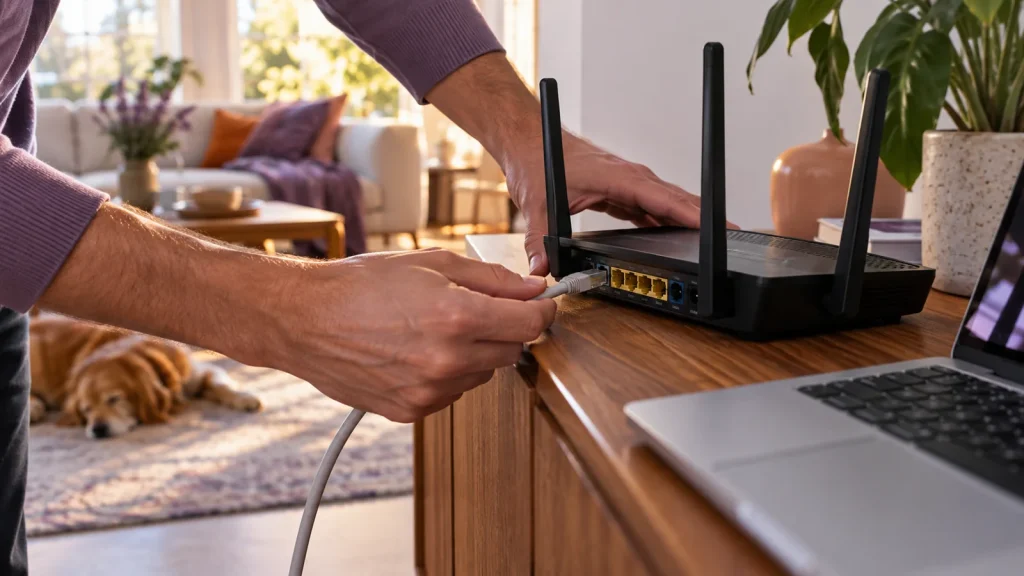
To set up a personal VPN on a router, first confirm that the exact router and firmware support a compatible VPN client. Obtain the provider’s router configuration and any separate service credentials, create the tunnel using the vendor’s instructions, choose which devices should use it, and verify routing and recovery. A router advertising VPN support does not automatically support this particular use.
The critical distinction is between a VPN client, a VPN server, and VPN passthrough. A client connects your household network outward to a gateway. A server lets approved remote devices connect inward. Passthrough merely helps devices run their own tunnels through the router. Confusing these functions can lead to buying hardware that cannot perform the task you intended.
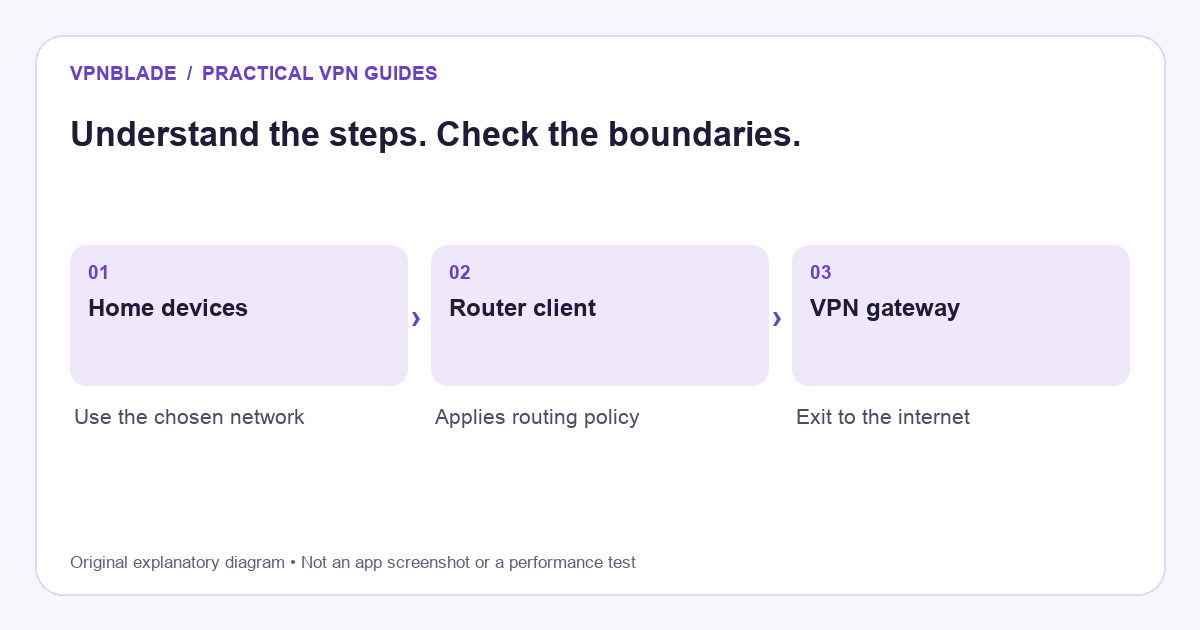
Quick steps
- Confirm client support for the exact hardware and firmware.
- Back up the working configuration.
- Use the provider’s supported configuration and routing method.
- Check DNS, devices, failure behaviour and recovery.
Define the household traffic you want to route
List the devices and applications that need the tunnel. A television without a suitable native app may be a reason to consider a router client, while a laptop used both at home and away may still need its own app. Router protection has a network boundary: a phone on cellular data or a different Wi-Fi network does not inherit the home tunnel.
Decide whether all household devices should use the VPN or whether selected devices need a different route. Printers, casting devices, work systems, and other local services can complicate the picture. A simple whole-network route may be easy to understand but inconvenient for a few applications. More selective routing can help, provided you can explain and verify the resulting rules.
VPNBLADE · PLAN SHORTLIST
A current plan to consider
Selected plan offers, not performance rankings. We may earn a commission through affiliate links. Monthly equivalents require the full payment shown.
ExpressVPN
Check your exact device setupExpressVPN Basic — 28-month introductory offer
USD 83.72 upfront · First 28 months, paid upfront
Get ExpressVPN deal Offer details & coupon conditions →Renewal & refund conditions
USD 99.95 annually after the initial 28-month term.
30-day money-back guarantee for new users; provider terms and purchase-channel conditions apply.
Check the exact model and firmware
Find the model number, hardware revision, and installed firmware version. Similar retail names can hide different chipsets or feature sets. Read the manufacturer’s current documentation and the VPN provider’s compatibility guide for that exact combination. A general statement that a brand supports VPNs is not enough evidence for a purchase or configuration change.
Avoid treating custom firmware as a routine requirement. Replacing firmware can introduce compatibility, recovery, warranty, and support issues. If your current router lacks the needed client function, compare supported alternatives before deciding to flash it. Keep a recovery plan and a configuration backup for any authorised change. An unfamiliar download labelled “VPN firmware” is not a substitute for verified documentation.
Confirm the protocol and configuration method
The provider and router must support a compatible client arrangement. Some use an imported OpenVPN profile, others a WireGuard configuration or a vendor-specific interface. The required credentials may differ from the email address and password used in the provider’s app. Follow the instructions for router or manual access, not a mobile-app screenshot.
OpenWrt’s OpenVPN client documentation illustrates that configuration includes networking and routing, not merely entering a subscription password. It is documentation for a particular environment, not a universal command list for every router. WireGuard’s overview likewise describes interfaces and peer keys, while commercial account provisioning is an additional layer.
Understand the performance limit before changing settings
The router must process encrypted traffic for the devices using its tunnel. CPU capability, implementation, protocol, connection quality, and routing distance can all affect throughput. The speed advertised for the router’s Wi-Fi radio is not a promise about its encrypted VPN throughput. Nor does a gigabit internet package prove that the router can sustain that rate through a tunnel.
Use your actual needs as the benchmark. Several simultaneous streams, large transfers, and live calls create different demands from occasional browsing. Obtain credible performance information for the exact hardware if throughput is a buying requirement. VPNBlade does not turn a vendor’s radio rating or a provider’s maximum server-port speed into a measured household result.
Back up the working setup
Before making an authorised router change, save the current configuration using its supported backup function. Record how to reach the administration interface and how to restore the original internet route. Make changes when a temporary interruption will not disrupt other people’s essential work. If someone else manages the network, get their help rather than altering a shared system without understanding its dependencies.
Keep account credentials and configuration files private. A file can contain keys, certificates, or identifiers that should not be posted in a forum. Share redacted diagnostics only when needed. If the router is supplied and managed by an employer, building operator, or internet provider, confirm which settings you are permitted to change and which support responsibilities remain with them.
Create the VPN client connection
Use the router’s supported client interface and import or enter the provider-supplied configuration. Confirm the correct endpoint, protocol, credentials, and certificate requirements. Do not disable verification to work around a certificate warning. A successful tunnel depends on authenticating the intended gateway, not merely obtaining a connected-looking indicator.
Start with one client configuration and a straightforward route. Avoid combining a device VPN, a router VPN, custom DNS, and several specialty modes in the first test. A simple baseline makes it easier to identify a failed credential, unreachable endpoint, or routing mistake. Once the normal connection is understood, add only the additional controls needed for a specific requirement.
Choose the routing policy deliberately
Some firmware offers device-based or destination-based policy routing; other routers provide fewer controls. Decide which devices use the tunnel and what happens to the rest. An exception for one television or work laptop should be documented so that a later address check does not look like an unexplained leak. Traffic outside the tunnel is outside that route by design.
Local network access needs its own attention. Reaching a printer or casting device may rely on discovery traffic that a particular configuration handles differently. Test the services rather than assuming a full-tunnel setting either preserves or breaks them universally. If a workaround involves a direct-route exception, understand what traffic it excludes and whether that trade-off is acceptable.
DNS and IPv6 deserve explicit checks
Check how the router obtains and distributes DNS settings and how the VPN configuration handles those requests. A custom browser resolver can add another layer on individual devices. IPv6 behaviour also varies: some configurations route it through the tunnel, while others restrict or handle it separately. Read the provider and firmware guidance rather than copying an unrelated setting from a forum.
If name resolution fails, devices may appear offline despite an established tunnel. If only one application behaves differently, inspect that device’s own settings before changing the whole router. The VPN troubleshooting guide offers an order for isolating these layers. Keep a record of the original values so that experiments can be reversed.
Decide what happens when the tunnel drops
The router may either allow ordinary internet routing when the tunnel is unavailable or block the affected traffic. Those are different failure policies with practical consequences. Falling back can preserve connectivity but remove the intended VPN route. Blocking can preserve the route requirement but interrupt every device dependent on it. Choose deliberately instead of assuming the product always does one or the other.
Use non-sensitive activity to check expected behaviour after a routine reconnect or restart. Do not disrupt a shared network merely to manufacture a dramatic failure test. Confirm that your own permitted setup recovers as documented. If the firmware cannot express the policy you need, that is a compatibility limit, not something solved by adding another unrelated subscription.
Verify from a device behind the router
Check the router’s connection status, then use a device intended to follow its tunnel for a public-address comparison. Confirm that another intentionally excluded device behaves as expected too. A test on the administration computer alone does not prove every household device uses the same route. Our IP-address guide explains the limits of this observation.
Repeat essential application checks and document the network used. A phone that silently switches to cellular data can make results confusing. A device running its own VPN can also obscure the router’s contribution. Keep these layers stable while you establish the baseline, then test the mobility and exceptions that matter to your normal use.
Keep an escape route for troubleshooting
Know how to disable the client configuration and return to the original permitted connection. That does not mean permanently abandoning your chosen protection; it means maintaining an understandable recovery path. If the router becomes unreachable, use the manufacturer’s documented recovery process rather than trying random reset combinations or unknown firmware files.
Record the change date, configuration source, provider, and relevant firmware version. Revisit that record after major updates because menus, protocol support, and recommended settings can change. A successful setup is an ongoing configuration you can maintain, not a one-time screenshot of a green indicator. The more devices depend on it, the more useful that small record becomes.
Compare router support before subscribing
A provider’s best desktop offer is not automatically its best router fit. Check manual-configuration access, protocol support, device-count rules, and whether the functions you need exist outside the native app. Split tunneling and specialty modes available in an app may not be reproduced by a generic router configuration. Ask a precise compatibility question if the documentation is unclear.
The VPN setup guide covers device apps, and the comparison tool separates initial and renewal costs. Use the current cards below only after confirming the router can use the relevant service. A long introductory term is not a bargain if the router lacks the required client function or cannot meet the household’s practical performance needs.
Live plan records · Monthly equivalents require the full initial payment. Prices in different currencies are not directly comparable. Confirm tax, eligibility and renewal terms at checkout.
Proton VPN Plus — 24-month introductory offer
USD 3.49/month equivalent
USD 83.76 upfront
First 24 months, paid upfront
Next bill: USD 83.88 every 12 months after the initial 24-month term; renewal prices are subject to the provider’s terms.
Recorded code: VPNINTRO449349
Source checked 2026-10-25 · Research record; no performance endorsement.
See offer & full terms ↗ExpressVPN Basic — 28-month introductory offer
USD 2.99/month equivalent
USD 83.72 upfront
First 28 months, paid upfront
Next bill: USD 99.95 annually after the initial 28-month term.
Source checked 2026-10-25 · Research record; no performance endorsement.
See offer & full terms ↗Sources and editorial method
Written by VPNBlade Editorial from the primary documentation below, checked 25 October 2026. Practical checklists are editorial guidance, not a claim of hands-on product testing. Menus and product behaviour can change; follow the documentation for your current app and device.
- OpenWrt: OpenVPN client — A supported router-client setup includes configuration, network and routing tasks.
- WireGuard: conceptual overview — VPN interfaces, peer keys and IP-packet encapsulation; product account handling is a separate layer.
Read our editorial standards · Explore the VPNBlade Blog
Sources & verification
- OpenWrt: OpenVPN client ↗Primary technical or platform documentation · Checked 2026-10-25
A supported router-client setup includes configuration, network and routing tasks.
- WireGuard: conceptual overview ↗Primary technical or platform documentation · Checked 2026-10-25
VPN interfaces, peer keys and IP-packet encapsulation; product account handling is a separate layer.
YOUR EXPERIENCE MATTERS
Was this article useful?
Genuine reader helpfulness ratings. These do not measure VPN performance or verify a purchase. Only moderated submissions count. Ratings may reflect earlier versions of this information.
VPNBLADE · PLAN SHORTLIST
Ready to choose a plan?
Selected plan offers, not performance rankings. We may earn a commission through affiliate links. Monthly equivalents require the full payment shown.
ExpressVPN
Check your exact device setupExpressVPN Basic — 28-month introductory offer
USD 83.72 upfront · First 28 months, paid upfront
Get ExpressVPN deal Offer details & coupon conditions →Renewal & refund conditions
USD 99.95 annually after the initial 28-month term.
30-day money-back guarantee for new users; provider terms and purchase-channel conditions apply.
Proton VPN
Compare free access and paid upgradesProton VPN Plus — 24-month introductory offer
USD 83.76 upfront · First 24 months, paid upfront
Get Proton VPN deal Offer details & coupon conditions →Renewal & refund conditions
USD 83.88 every 12 months after the initial 24-month term; renewal prices are subject to the provider’s terms.
30-day money-back guarantee; purchase-channel and provider eligibility conditions apply.