
Post
How to Get a VPN: A Complete Setup Guide for Beginners
Choose a VPN, install its official app and verify the route. A complete guide to devices, billing, permissions, reconnection and practical setup checks.
VPNBLADE · PLAN SHORTLIST
Compare current VPN plans
Selected plan offers, not performance rankings. We may earn a commission through affiliate links. Monthly equivalents require the full payment shown.

ExpressVPN
Check your exact device setupExpressVPN Basic — 28-month introductory offer
USD 83.72 upfront · First 28 months, paid upfront
Get ExpressVPN deal Offer details & coupon conditions →Renewal & refund conditions
USD 99.95 annually after the initial 28-month term.
30-day money-back guarantee for new users; provider terms and purchase-channel conditions apply.

NordVPN
Apps across major device platformsNordVPN Basic — 27-month introductory offer
USD 94.23 upfront · First 27 months, paid upfront
Get NordVPN deal Offer details & coupon conditions →Renewal & refund conditions
USD 139.08 every year after the initial 27-month term at the current renewal price.
30-day money-back guarantee; provider eligibility, payment-channel and refund terms apply.

Proton VPN
Compare free access and paid upgradesProton VPN Plus — 24-month introductory offer
USD 83.76 upfront · First 24 months, paid upfront
Get Proton VPN deal Offer details & coupon conditions →Renewal & refund conditions
USD 83.88 every 12 months after the initial 24-month term; renewal prices are subject to the provider’s terms.
30-day money-back guarantee; purchase-channel and provider eligibility conditions apply.
In this article

A VPN is straightforward to obtain: choose a service that supports your devices, download its official app, sign in, and connect. The important work is deciding which kind of VPN you need and checking what the connection actually covers. A shopping decision and a successful installation are only the beginning. A useful setup must also survive everyday events such as changing networks, waking a laptop, and reconnecting after an update.
This guide takes you from the buying decision to a repeatable first-connection check. It covers personal VPN subscriptions rather than pretending that a consumer app can replace your employer’s remote-access system. The instructions are based on current platform and provider documentation, with practical checks you can perform yourself. They are not a report of VPNBlade performance tests or a ranking based on invented experience.
Quick steps
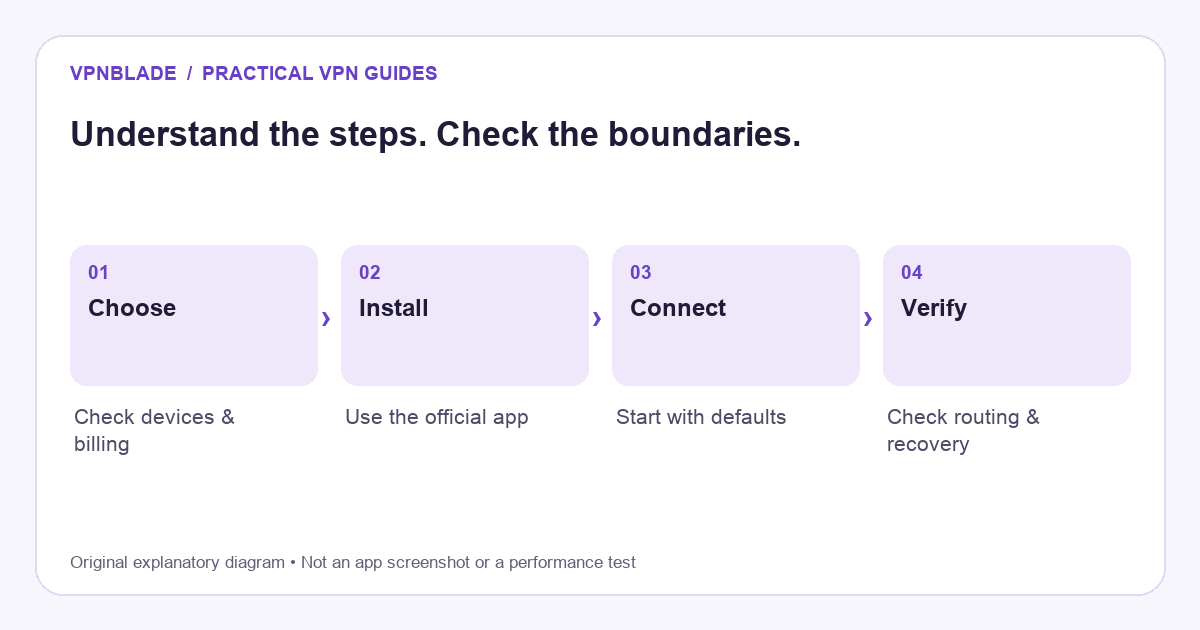
- Define the device and task you need to cover.
- Compare the full first payment and renewal terms.
- Install the official app and connect with default settings.
- Check routing, essential apps and reconnection.
Start by choosing the right kind of VPN
The word VPN describes a connection method, not one particular product. A personal VPN usually carries your internet traffic through a provider’s gateway. A workplace VPN normally gives you approved access to an organisation’s network or applications. A home VPN server lets you reach your own network remotely. All three can involve encrypted tunnels, but they solve different problems and have different administrators.
If your goal is to reach a company database, ask your IT team which client and authentication method to use. Buying a popular personal subscription will not grant access to a private business network. If your goal is to reduce what a café network can observe about your browsing destinations, a personal service may be relevant. If you want to reach a home storage device while travelling, investigate remote access to your own network instead.
Writing down one specific goal prevents an expensive wrong turn. “I want more privacy” is a starting point, but “I want protection on public Wi-Fi across a phone and laptop” gives you something to evaluate. Our VPN buying checklist can help you turn a broad concern into a concrete requirement.
VPNBLADE · PLAN SHORTLIST
A current plan to consider
Selected plan offers, not performance rankings. We may earn a commission through affiliate links. Monthly equivalents require the full payment shown.
ExpressVPN
Check your exact device setupExpressVPN Basic — 28-month introductory offer
USD 83.72 upfront · First 28 months, paid upfront
Get ExpressVPN deal Offer details & coupon conditions →Renewal & refund conditions
USD 99.95 annually after the initial 28-month term.
30-day money-back guarantee for new users; provider terms and purchase-channel conditions apply.
Understand what you are buying before you compare apps
A personal VPN creates an encrypted connection between a device and a gateway. For traffic using that tunnel, the local network sees the gateway connection rather than the same direct connections to individual destinations. Websites generally see an address belonging to the VPN’s exit infrastructure. The VPN provider therefore becomes part of the trust chain. Encryption is useful, but it does not remove the need to assess the operator.
A VPN also has boundaries. It does not erase the account you sign into, remove every advertising identifier, or make a malicious download harmless. HTTPS still matters because it protects the connection to a website beyond the VPN tunnel. An endpoint infected with malware remains a serious problem. If those distinctions are unfamiliar, read how a VPN works before choosing a plan on the strength of anonymity claims.
Think about which applications need coverage. A browser extension may protect only browser traffic, depending on how it is implemented. A full device app normally has a wider scope, while split tunneling deliberately excludes selected traffic. Router coverage reaches devices through that router, but does not follow a phone onto cellular data. The correct option depends on where the traffic originates and where the tunnel begins.
Make a short requirements list
List the devices you actually use, including operating systems and versions. A service supporting Windows and Android does not necessarily support a particular television, router, or older phone. Check the current minimum system requirements on the provider’s website. Do not assume that an app-store listing on one device proves support for another. A family with mixed devices needs a different checklist from someone protecting a single laptop.
Next, identify essential controls. You may want automatic connection on untrusted networks, a kill switch, a choice of locations, or split tunneling. Write down why each feature matters. A kill switch can prevent direct traffic when the tunnel fails, but may also explain why the internet stops working after disconnection. Split tunneling can preserve local services, but excluded applications do not receive the same VPN routing.
Finally, note any applications that must keep working: a printer, company login, banking app, video call, or home server. This is an acceptance list, not a promise that every VPN supports those workflows. Keep it short enough to test during the applicable refund period. A service with many features is still a poor fit if its everyday connection behaviour does not match your needs.
Read the first payment and the next bill separately
A prominently advertised monthly equivalent is often the total prepaid price divided by the number of initial months. It may not be a monthly payment option. A plan described as a low amount per month can still require a much larger immediate charge. Bonus months can reduce the introductory equivalent without extending the duration of later renewals. Taxes may also appear only after billing details are selected.
Use four separate figures when comparing: the amount due today, the initial duration, the next charge, and the duration that next charge buys. If the last two figures are unknown, treat them as unknown rather than using a crossed-out comparison price as a guaranteed invoice. A first-term discount is not evidence that the same discount will repeat. Our monthly-versus-upfront explanation walks through this arithmetic.
Compare like with like. One-device and household plans are different entitlements. A bundle containing antivirus or identity services is not a standalone VPN at the same scope. A subscription purchased through an app store can have different cancellation and refund procedures from a website purchase. Our comparison tool separates billing fields, while the coupon stores show the sources and conditions attached to current offers.
Use a short trial or refundable period carefully
A free plan, a payment-card trial, and a paid plan with a money-back guarantee are different arrangements. A free plan may restrict locations, speed, or data. A trial can start an automatically renewing subscription. A refund guarantee usually requires a request and may exclude certain purchase channels or payment methods. Turning off renewal does not necessarily submit a refund request for money already paid.
Before paying, save the terms relevant to your exact selection and note the request deadline. Verify whether the window applies to first-time customers only and whether it runs from payment or activation. Keep the order confirmation somewhere you can retrieve it. Do not postpone basic compatibility checks until the final evening: resolving an installation problem can take longer than opening the app and pressing Connect.
A sensible acceptance check includes the devices, networks, and applications on your requirements list. The objective is to establish fit, not to manufacture a laboratory score. If an essential workflow fails, record the exact error and ask support a precise question. A vague message that “the VPN is bad” gives the provider little useful information and gives you little basis for deciding what to do next.
Download the official app
Start at the provider’s official website or the platform’s official app store, and verify the publisher. Advertising results, lookalike domains, and third-party download collections can be misleading. You do not need a modified app, unofficial activation tool, or cracked licence to use a legitimate subscription. Installing an untrusted program undermines the privacy goal that led you to a VPN in the first place.
On a phone, use the provider’s own store link when possible. On a desktop, confirm that the installer matches the operating system and processor type. Read permission prompts in context. A VPN app needs permission to establish a network connection; that does not automatically justify unrelated access to contacts, photographs, or device administration. If a permission seems inconsistent with the product’s purpose, check its documentation before approving it.
Keep the operating system and app updated. Updates can fix security and compatibility issues, although an update can also change menus or introduce a temporary problem. Make a note of the installed version when you begin your checks. That simple record is more useful for troubleshooting than assuming every tutorial online describes the same interface you are seeing.
Set up a VPN on Windows
For most personal subscriptions, the provider’s supported app is the most direct route. Install it, sign into the correct account, and connect using the recommended automatic option. Do not confuse a subscription email address with a separate manual-configuration username: some providers use different credentials for their apps and for exported configuration files. Follow the instructions for the method you actually selected.
Windows also supports manually created VPN profiles. Microsoft’s connection guide explains the profile fields and connection process. This route requires the correct server, protocol, and authentication information from your service or employer. Choosing Windows’ built-in provider does not create a commercial subscription or supply a gateway automatically. Avoid guessing a server address from an unrelated tutorial.
After connection, confirm the status in the client and test the applications on your list. If you need local network devices, check them while connected rather than assuming access is unchanged. A workplace profile may be managed and have restrictions you cannot edit. Contact its administrator instead of removing it to make a personal VPN work. For broader selection criteria, see our Windows VPN guide.
Set up a VPN on Android
Install the official Android app, sign in, and approve its VPN connection request when you intend to establish the tunnel. Begin with the recommended connection mode before changing advanced options. Phone manufacturers organise Settings differently, so a tutorial’s exact sequence may not match your device. Searching Settings for “VPN” is often more reliable than following a menu path written for a different manufacturer.
Android has system-level VPN controls, including settings associated with persistent connections. Google’s VPN help describes editing and disconnecting profiles and notes that app-based setups can behave differently. Understand whether automatic connection is controlled by Android, the provider app, or both. If you later disconnect and it reconnects immediately, that behaviour may reflect a setting rather than an installation failure.
Try the connection on Wi-Fi and cellular data separately. A phone can move between them without an obvious interruption in other applications, but a VPN may need to reconnect. Check the client status after the change and repeat your public-address check. For a careful explanation of disconnecting, reconnecting, and persistent connection settings, use our Android VPN controls guide.
Set up a VPN on iPhone
Use the official iOS app and follow its connection setup. A system request to add a VPN configuration is part of establishing the connection, but it is still worth reading. Make sure you recognise the app and understand why it needs that configuration. If the iPhone is managed by an employer or school, ask whether personal VPN apps are permitted and whether the managed connection has priority.
The provider app is generally where you choose a server or specialty mode. iPhone Settings exposes installed VPN configurations, but a country selector inside the app is not the same as changing the device’s region, GPS permissions, or Apple Account country. If you want to switch an existing connection rather than install a new service, see how to change a VPN on iPhone.
Keep iCloud Private Relay separate in your thinking. It is an Apple privacy service with a different traffic scope and location design; it is not a general replacement for every third-party VPN feature. A Safari address check may be influenced by Private Relay, depending on your settings. Apple’s explanation is useful when interpreting apparently inconsistent results between Safari and another application.
Decide whether your router needs a VPN
Installing an app on a phone is not the same as configuring a router. A router must support the required VPN client function and protocol. A box advertising “VPN support” might only accept inbound VPN connections, or might refer to passthrough for devices running their own clients. Those features do not prove that the router can route the household through a commercial VPN gateway.
Check the exact model, hardware revision, firmware version, and provider documentation before buying hardware or changing firmware. You may need a configuration file and service credentials rather than the app password. Router processing power can also affect throughput. Do not assume a fast internet subscription means the router can encrypt traffic at the same rate. Our router setup guide explains compatibility and routing checks in more detail.
Router coverage has a clear boundary: devices using a different network do not inherit that tunnel. A phone on cellular data needs its own suitable setup. Conversely, running a device VPN through a VPN-enabled router can create an unnecessary extra layer and complicate troubleshooting. Start with one clearly understood tunnel, then add complexity only if a specific requirement justifies it.
Make your first connection with conservative settings
Use automatic protocol selection and a nearby appropriate location for your first check unless your provider documents another requirement. This gives you a simple baseline. Specialty modes, custom DNS, Double VPN, and split tunneling can all be useful, but changing several settings at once makes it harder to tell which choice affected the result. A normal single-hop connection is a sensible starting point for ordinary browsing.
Once connected, open a familiar HTTPS website and confirm that ordinary browsing works. Then check any essential applications. A green status indicator tells you what the client believes about its tunnel; it is not a complete test of every device route. If the app has logs or a connection-details screen, note the selected location and protocol without sharing account secrets or sensitive browsing information.
Avoid drawing conclusions from one speed test. Results vary with the route, server load, test destination, radio conditions, and background transfers. If performance matters, compare several repeatable observations on the same device and network. Keep the original baseline and the connected result distinct. A slower result can be relevant without proving that the VPN is defective, and a faster result does not prove an anonymity claim.
Check whether the VPN changes your public address
For a basic comparison, note the public IP address reported by a reputable address-check service before connection, then check again after connecting. Do not post your unredacted results publicly. In a typical full-tunnel setup, the destination sees the VPN exit address instead of your usual public address. An unchanged result deserves investigation, but interpretation depends on split tunneling, browser proxies, Private Relay, and whether the test used IPv4 or IPv6.
An address change is one useful signal, not a certificate of complete protection. It does not prove the provider keeps no logs or that every application uses the tunnel. A website can still recognise a signed-in account. A map can still reflect GPS permission or stored location information. Read what a VPN changes about your IP address before treating a location result as proof of success or failure.
If the address does not change, check the client’s actual connection state, the application used for the check, and any exclusions. Repeat with a simple default configuration before trying advanced repairs. If the result remains unclear, contact support with a redacted description of the steps and relevant app version. Do not disable security features permanently simply to obtain a preferred result on a checker page.
Check reconnection and kill-switch behaviour
A connection that works once may behave differently after a laptop sleeps or a phone changes networks. During your initial evaluation, check ordinary reconnection events while doing something non-sensitive. Note whether the app reconnects automatically, whether traffic pauses, and whether an explicit action is needed. The right behaviour depends on your goal: uninterrupted connectivity and strict fail-closed protection are not always identical priorities.
A kill switch is intended to prevent some direct traffic when the VPN connection is unavailable, but implementations differ. Read the provider’s explanation for your platform. Some settings apply only after a connected tunnel drops; others can block access whenever the VPN is off. If you disconnect deliberately and lose internet access, that can be the expected effect of a persistent blocking setting rather than evidence of a damaged connection.
Know how to restore the intended configuration after troubleshooting. Temporarily changing a control for a non-sensitive test is different from leaving it disabled indefinitely. Keep a small note of what you changed and why. If another person relies on the device or router, make sure they understand the effect too. Our VPN troubleshooting guide offers a way to isolate problems without changing everything at once.
Keep a simple ownership record
Save the subscription channel, renewal date, device allowance, and cancellation method in your normal account-management records. A purchase on Apple or Google may need to be managed there, while a website subscription normally has its own account portal. Deleting an app does not necessarily cancel recurring billing. The same distinction matters when replacing a service: changing apps is not proof that the previous subscription has ended.
Set a reminder early enough to review the next charge before any advance billing date. Use current terms rather than a screenshot of an old introductory offer. A provider may change price, supported devices, or plan names over time. Keeping a short record makes it easier to decide whether renewal is still worthwhile and to identify the correct subscription when contacting support.
Common questions before you connect
Do you need to pay immediately? Not always. A legitimate free plan can be useful for a limited task, provided its restrictions fit. Read our free VPN selection guide for the differences between a free tier, trial, and refundable paid subscription. Avoid choosing an unknown app solely because it promises unlimited everything with no explanation of its business model.
Can you install two VPNs? Often you can install more than one app, but trying to run overlapping tunnels can cause routing or permission conflicts. Start with one active personal VPN unless you understand and need a supported combination. Do not remove an employer-managed configuration to solve a personal app conflict. Ask the relevant administrator how the two should coexist.
Is a VPN required all the time? That depends on the task, the network, and your tolerance for the trade-offs. It can be useful on an untrusted network or when you want to limit destination visibility to the local provider. It cannot replace updates, strong authentication, or careful handling of downloads. Our guide to whether you need a VPN helps you make that decision without turning a useful tool into a universal requirement.
Compare plans after you know what you need
Use the current records below as a starting point for comparing commercial terms, not as proof that one provider has passed your device checks. Follow the provider link to confirm eligibility, full payment, tax, renewal duration, and refund rules. A cheap introductory equivalent is only useful when the actual product fits the requirements you wrote down at the beginning.
Live plan records · Monthly equivalents require the full initial payment. Prices in different currencies are not directly comparable. Confirm tax, eligibility and renewal terms at checkout.
Proton VPN Plus — 24-month introductory offer
USD 3.49/month equivalent
USD 83.76 upfront
First 24 months, paid upfront
Next bill: USD 83.88 every 12 months after the initial 24-month term; renewal prices are subject to the provider’s terms.
Recorded code: VPNINTRO449349
Source checked 2026-10-25 · Research record; no performance endorsement.
See offer & full terms ↗NordVPN Basic — 27-month introductory offer
USD 3.49/month equivalent
USD 94.23 upfront
First 27 months, paid upfront
Next bill: USD 139.08 every year after the initial 27-month term at the current renewal price.
Source checked 2026-10-25 · Research record; no performance endorsement.
See offer & full terms ↗ExpressVPN Basic — 28-month introductory offer
USD 2.99/month equivalent
USD 83.72 upfront
First 28 months, paid upfront
Next bill: USD 99.95 annually after the initial 28-month term.
Source checked 2026-10-25 · Research record; no performance endorsement.
See offer & full terms ↗Sources and editorial method
Written by VPNBlade Editorial from the primary documentation below, checked 25 October 2026. Practical checklists are editorial guidance, not a claim of hands-on product testing. Menus and product behaviour can change; follow the documentation for your current app and device.
- Google: connect to a VPN on Android — System VPN controls, app-managed configurations and persistent-connection settings.
- Microsoft: connect to a VPN in Windows — Creating profiles, supported authentication information and checking connection status.
- Apple: install or remove configuration profiles — VPN and device-management location and consequences of profile removal.
- Apple: iCloud Private Relay networking — Private Relay traffic scope and coarse location, distinct from a general personal VPN.
Read our editorial standards · Explore the VPNBlade Blog
Sources & verification
- Google: connect to a VPN on Android ↗Primary technical or platform documentation · Checked 2026-10-25
System VPN controls, app-managed configurations and persistent-connection settings.
- Microsoft: connect to a VPN in Windows ↗Primary technical or platform documentation · Checked 2026-10-25
Creating profiles, supported authentication information and checking connection status.
- Apple: install or remove configuration profiles ↗Primary technical or platform documentation · Checked 2026-10-25
VPN and device-management location and consequences of profile removal.
- Apple: iCloud Private Relay networking ↗Primary technical or platform documentation · Checked 2026-10-25
Private Relay traffic scope and coarse location, distinct from a general personal VPN.
YOUR EXPERIENCE MATTERS
Was this article useful?
Genuine reader helpfulness ratings. These do not measure VPN performance or verify a purchase. Only moderated submissions count. Ratings may reflect earlier versions of this information.
VPNBLADE · PLAN SHORTLIST
Ready to choose a plan?
Selected plan offers, not performance rankings. We may earn a commission through affiliate links. Monthly equivalents require the full payment shown.
ExpressVPN
Check your exact device setupExpressVPN Basic — 28-month introductory offer
USD 83.72 upfront · First 28 months, paid upfront
Get ExpressVPN deal Offer details & coupon conditions →Renewal & refund conditions
USD 99.95 annually after the initial 28-month term.
30-day money-back guarantee for new users; provider terms and purchase-channel conditions apply.
NordVPN
Apps across major device platformsNordVPN Basic — 27-month introductory offer
USD 94.23 upfront · First 27 months, paid upfront
Get NordVPN deal Offer details & coupon conditions →Renewal & refund conditions
USD 139.08 every year after the initial 27-month term at the current renewal price.
30-day money-back guarantee; provider eligibility, payment-channel and refund terms apply.
Proton VPN
Compare free access and paid upgradesProton VPN Plus — 24-month introductory offer
USD 83.76 upfront · First 24 months, paid upfront
Get Proton VPN deal Offer details & coupon conditions →Renewal & refund conditions
USD 83.88 every 12 months after the initial 24-month term; renewal prices are subject to the provider’s terms.
30-day money-back guarantee; purchase-channel and provider eligibility conditions apply.