
Post
How to Split Tunnel a VPN on Windows: Apps, Routes and Checks
Configure Windows VPN split tunneling with a clear exception rule. Check app coverage, kill-switch interaction and both protected and excluded routes.
VPNBLADE · PLAN SHORTLIST
Compare current VPN plans
Selected plan offers, not performance rankings. We may earn a commission through affiliate links. Monthly equivalents require the full payment shown.

Proton VPN
Compare free access and paid upgradesProton VPN Plus — 24-month introductory offer
USD 83.76 upfront · First 24 months, paid upfront
Get Proton VPN deal Offer details & coupon conditions →Renewal & refund conditions
USD 83.88 every 12 months after the initial 24-month term; renewal prices are subject to the provider’s terms.
30-day money-back guarantee; purchase-channel and provider eligibility conditions apply.
In this article

Cover: AI-generated editorial illustration of an everyday device setting; not a product screenshot or evidence of testing.
To split tunnel a Windows VPN, use your provider’s supported split-tunneling control, choose which applications or destinations should use the tunnel, apply the change, and check both the protected and excluded routes. Start with one exception. A VPN’s connected indicator alone cannot confirm the route used by every program.
The practical purpose is to make a deliberate exception without losing track of it. You might need a particular application to use your ordinary connection while a separate browser stays on the VPN. That decision changes which network carries the excluded activity. Treat an exclusion as a continuing routing choice, rather than a temporary fix you can safely forget.
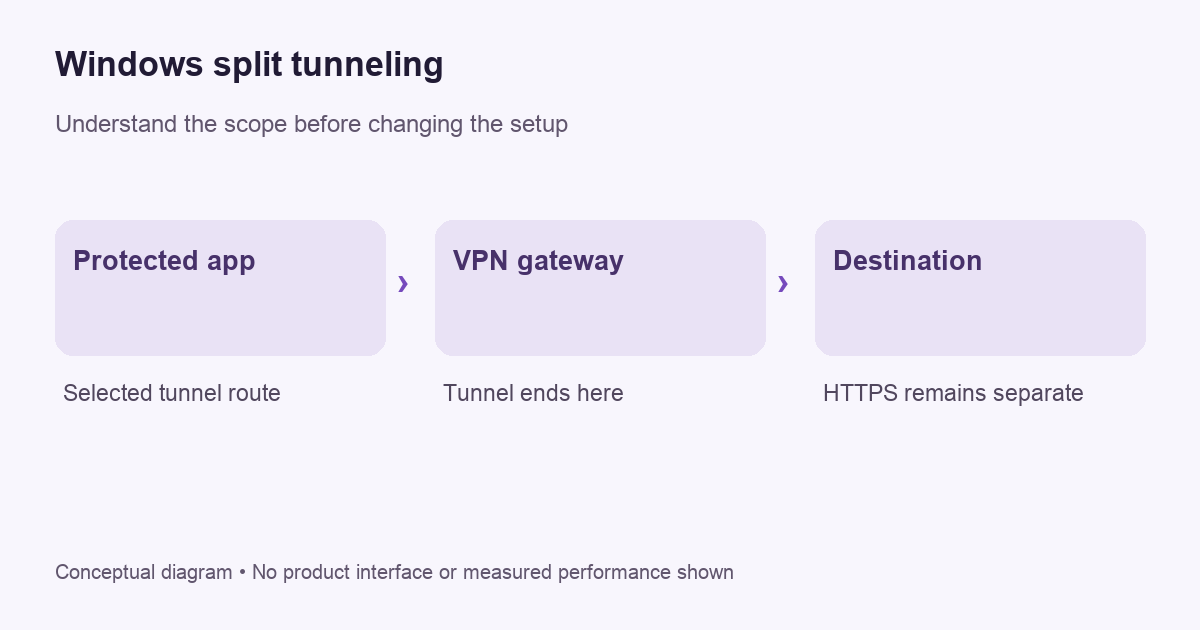
Choose the rule before opening settings
Write one sentence describing what you want: “This browser should use the VPN; this other application should use my usual connection.” Name the actual programs. “Keep work protected” is too vague when several browsers, background helpers and sync clients are running. A short written rule gives you something concrete to verify after changing the configuration.
There are two common approaches. Exclude mode starts with the VPN route and creates exceptions. Include mode starts with the ordinary connection and selects traffic for the tunnel. Those defaults produce very different outcomes for a newly installed program. If you want broad VPN coverage with one exception, an include-only list can be the wrong starting point.
App-based rules and destination-based rules also answer different questions. An application rule follows a selected program. A destination rule follows an address or supported domain match. A browser can visit many destinations, and a website can use several hosts. Choose the narrowest supported control that actually describes your need; do not assume a website is represented by one permanent address.
Check your exact Windows application
Read the instructions for the installed provider app and version. Microsoft’s Windows routing documentation describes route-based split and force tunneling for Windows VPN configurations. A commercial app’s per-program list is a separate interface. Instructions for a managed Windows profile should not automatically be applied to a personal provider app.
For a concrete provider example, Proton VPN’s current instructions place Windows split tunneling in its Home shortcut or Settings, with Include and Exclude modes, app or IP selections, and an Apply or Reconnect step. Its support document describes this as a paid-plan feature. That example is useful for understanding the workflow, but the same labels should not be promised for every Windows VPN.
Check whether your installed client supports the feature before buying a plan for it. A provider may offer different controls in its desktop app, browser extension and mobile app. The presence of split tunneling somewhere in a feature list does not establish the exact Windows behavior you need. Our Windows VPN guide explains the broader compatibility questions.
VPNBLADE · PLAN SHORTLIST
A current plan to consider
Selected plan offers, not performance rankings. We may earn a commission through affiliate links. Monthly equivalents require the full payment shown.
Proton VPN
Compare free access and paid upgradesProton VPN Plus — 24-month introductory offer
USD 83.76 upfront · First 24 months, paid upfront
Get Proton VPN deal Offer details & coupon conditions →Renewal & refund conditions
USD 83.88 every 12 months after the initial 24-month term; renewal prices are subject to the provider’s terms.
30-day money-back guarantee; purchase-channel and provider eligibility conditions apply.
Set up one exception and keep a recovery path
- Record your current VPN settings and the intended route for each test application.
- Open the provider’s documented split-tunneling control and choose Include or Exclude deliberately.
- Add one identifiable application or destination. Check the executable name if the app asks for a program file.
- Apply the settings and reconnect when the documented workflow requires it.
- Open fresh connections in both a protected and an excluded application, then verify their behavior.
- Remove the exception and reconnect if the result is unclear; recover the simpler configuration before adding more rules.
A saved screenshot of your own settings can help, but do not share it publicly if it includes account names, private destinations or workplace details. Keep the recovery steps close at hand, particularly when the device is your only way to contact support. Change one setting at a time so you can identify which change caused a problem.
Verify two paths, not just one IP result
A browser-based public-address check describes that browser’s request to that checking service. It cannot by itself prove the route used by a separate desktop application. If the browser is the program you excluded, its ordinary public address can be the expected result. If the protected browser shows the ordinary address, investigate before using it for the intended task.
Keep a small test record with four fields: application, intended path, observed result and date. Check a fresh connection after reconnecting the VPN. An existing session can make a changed setting harder to interpret. Read what a VPN changes about your IP address before treating an address result as a complete privacy assessment.
For an application without a visible public-address check, use its documented diagnostics or ask the provider how to confirm the route. Do not invent certainty from a working download or a green icon. “The application still works” and “the application uses my intended route” are different observations. Record uncertainty rather than turning it into a claim of protection.
Read the kill-switch interaction separately
A kill switch and a split-tunneling exception control different aspects of connectivity. Their interaction depends on the provider and platform. Proton’s current documentation specifically allows its Windows kill switches with split tunneling, while describing compatibility limits on other platforms. That documented Windows exception should not be generalized into a rule for unrelated products.
Decide what should happen if the VPN drops before depending on the setup. Should the excluded application keep working? Should protected applications stop? Ask those questions against the current documentation. Any optional disruption check should be done during a harmless activity, with no sensitive transfer in progress. Do not disable protections simply to make an unexplained error disappear.
Local printers and work VPNs need their own checks
If your immediate problem is reaching a home printer, look for the provider’s documented local-network option first. Excluding a whole browser may be much broader than the task requires. Identify whether the problem is discovering the printer, reaching its local address, or connecting to a cloud printing account. Those are separate symptoms and can point toward different controls.
On an employer-managed device, follow the organization’s approved configuration. A split route can affect which destinations go through workplace controls. Ask the administrator for an approved solution rather than modifying a managed profile to bypass restrictions. A personal VPN tutorial cannot determine your employer’s routing, access or data-handling requirements.
Keep the exception list understandable
Review the list when you replace an application, change VPN clients or update your workflow. Remove exceptions that no longer serve a clear purpose. A long list of unexplained entries is difficult to audit and makes future troubleshooting slower. The best configuration is one you can explain and check, even if it contains fewer clever routing rules.
If the connection stops behaving as expected, return to our VPN troubleshooting process and separate connection, routing and destination problems. Avoid adding overlapping exceptions while guessing. Restore a known baseline, reproduce one symptom, and give support the app version, Windows version and redacted rule description.
Compare plans after confirming feature support
Our Proton VPN store contains dated subscription records, while the provider documentation determines current split-tunneling support. A low monthly equivalent is only useful if the actual application provides the control you need. Compare the initial payment and renewal conditions, and confirm the feature before paying. These live cards are pricing records, not a performance recommendation.
Live plan records · Monthly equivalents require the full initial payment. Prices in different currencies are not directly comparable. Confirm tax, eligibility and renewal terms at checkout.
Proton VPN Plus — 24-month introductory offer
USD 3.49/month equivalent
USD 83.76 upfront
First 24 months, paid upfront
Next bill: USD 83.88 every 12 months after the initial 24-month term; renewal prices are subject to the provider’s terms.
Recorded code: VPNINTRO449349
Source checked 2026-10-25 · Research record; no performance endorsement.
See offer & full terms ↗For the wider buying decision, use the VPN comparison checklist. Keep routing requirements beside price, device support and cancellation terms. That makes it easier to reject a superficially attractive offer that does not fit your actual setup.
Sources and editorial method
Written by VPNBlade Editorial from the primary documentation below, checked 26 October 2026. Practical checklists are editorial guidance, not a claim of hands-on product testing. Menus and product behaviour can change; follow the documentation for your current app and device.
- protonvpn.com — protonvpn split tunneling — Documented scope, supported configuration and limitations discussed in the linked article section.
- learn.microsoft.com — vpn routing — Documented scope, supported configuration and limitations discussed in the linked article section.
Read our editorial standards · Explore the VPNBlade Blog
Sources & verification
- protonvpn.com — protonvpn split tunneling ↗Primary platform, project or provider documentation · Checked 2026-10-26
Documented scope, supported configuration and limitations discussed in the linked article section.
- learn.microsoft.com — vpn routing ↗Primary platform, project or provider documentation · Checked 2026-10-26
Documented scope, supported configuration and limitations discussed in the linked article section.
YOUR EXPERIENCE MATTERS
Was this article useful?
Genuine reader helpfulness ratings. These do not measure VPN performance or verify a purchase. Only moderated submissions count. Ratings may reflect earlier versions of this information.
VPNBLADE · PLAN SHORTLIST
Ready to choose a plan?
Selected plan offers, not performance rankings. We may earn a commission through affiliate links. Monthly equivalents require the full payment shown.
Proton VPN
Compare free access and paid upgradesProton VPN Plus — 24-month introductory offer
USD 83.76 upfront · First 24 months, paid upfront
Get Proton VPN deal Offer details & coupon conditions →Renewal & refund conditions
USD 83.88 every 12 months after the initial 24-month term; renewal prices are subject to the provider’s terms.
30-day money-back guarantee; purchase-channel and provider eligibility conditions apply.