
Post
VPN Not Working? A Step-by-Step Troubleshooting Guide
Isolate VPN connection, routing, DNS and one-service failures. Follow an orderly troubleshooting process and prepare a useful, redacted support report.
VPNBLADE · PLAN SHORTLIST
Compare current VPN plans
Selected plan offers, not performance rankings. We may earn a commission through affiliate links. Monthly equivalents require the full payment shown.

Surfshark
Households with multiple devicesSurfshark One — 27-month introductory offer
USD 67.23 upfront · First 27 months, paid upfront
Get Surfshark deal Offer details & coupon conditions →Renewal & refund conditions
Automatic renewal after the introductory term at the then-applicable rate. Confirm the chosen bundle’s next invoice and billing interval before purchase; no numeric renewal amount was verified.
30-day money-back guarantee; purchase-channel and provider eligibility conditions apply.

Proton VPN
Compare free access and paid upgradesProton VPN Plus — 24-month introductory offer
USD 83.76 upfront · First 24 months, paid upfront
Get Proton VPN deal Offer details & coupon conditions →Renewal & refund conditions
USD 83.88 every 12 months after the initial 24-month term; renewal prices are subject to the provider’s terms.
30-day money-back guarantee; purchase-channel and provider eligibility conditions apply.
In this article
When a VPN is not working, first identify whether the app cannot connect, the tunnel connects but internet access fails, or only one website or application has a problem. These are different failure points. Confirm the ordinary network works, check the VPN’s status and account, try one supported server change, then investigate routing and DNS without changing everything at once.
A disciplined sequence is more useful than immediately reinstalling software or resetting the router. Keep a note of the device, operating system, app version, network, exact error, and the last change before the problem began. Those details help you compare results and give support a useful report. Avoid sharing passwords, private keys, full IP addresses, or unredacted diagnostic logs publicly.
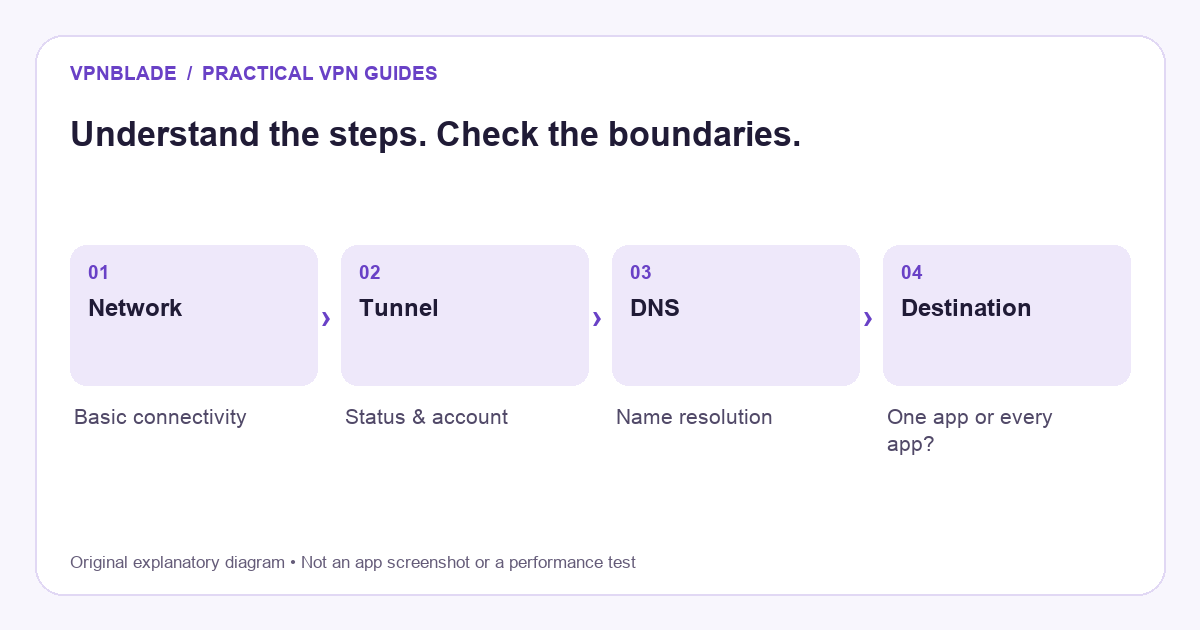
Quick steps
- Classify whether the failure is network, tunnel or one destination.
- Check the account, connection status and one alternate server.
- Inspect blocking, routing and DNS one change at a time.
- Send a precise, redacted support report if unresolved.
First classify the failure
If the client never establishes a tunnel, focus first on connectivity, authentication, and the selected gateway. If it reports connected but ordinary browsing fails, investigate routing, DNS, and blocking settings. If other browsing works but one service fails, inspect that application’s behaviour and compatibility. A single word such as “broken” hides the evidence needed to choose the next step.
Also distinguish poor performance from no connection. A video pause, high latency, and an authentication error do not have the same cause. Write down what actually happened rather than beginning with a diagnosis. If the issue is simply an unexpected location result, our IP-address explanation may resolve the confusion before you change the setup.
VPNBLADE · PLAN SHORTLIST
A current plan to consider
Selected plan offers, not performance rankings. We may earn a commission through affiliate links. Monthly equivalents require the full payment shown.
Surfshark
Households with multiple devicesSurfshark One — 27-month introductory offer
USD 67.23 upfront · First 27 months, paid upfront
Get Surfshark deal Offer details & coupon conditions →Renewal & refund conditions
Automatic renewal after the introductory term at the then-applicable rate. Confirm the chosen bundle’s next invoice and billing interval before purchase; no numeric renewal amount was verified.
30-day money-back guarantee; purchase-channel and provider eligibility conditions apply.
Check the underlying connection
Use an ordinary, non-sensitive browsing task to establish whether the access network works in the intended state. If you deliberately disconnect the VPN for this comparison, understand whether a kill switch or system rule blocks traffic without it. Losing access while that rule remains active can be expected behaviour, not proof the internet provider is offline.
On mobile devices, note whether you are using Wi-Fi or cellular data. A phone can change networks during a test and make the results misleading. If a hotel or café requires a captive-portal login, complete the legitimate network access process before evaluating the tunnel. Do not disable required organisational controls or bypass access rules to force a connection.
Read the client’s actual status
Open the provider app and inspect its status and any error message. A chosen server label is not the same as a completed connection. Closing the app window or dismissing its notification does not necessarily stop the service. Conversely, a disconnected app does not prove no other VPN-based security tool or router tunnel is affecting the route.
Check the named system configuration when needed. Google’s Android VPN help explains the relationship between system settings and app-managed connections. Windows also exposes saved profiles and connection state through its VPN settings. Use the controls for the correct configuration rather than deleting unrelated network entries.
Check account and authentication details
Confirm that you are using the intended account and that its subscription or entitlement is active. A provider may use separate credentials for native apps and manual router configurations. A password that works on the website is not necessarily the credential expected by an exported OpenVPN profile. Follow the documentation for the method you actually configured.
If authentication fails, use the provider’s official recovery process rather than trying credentials in a third-party tool. Consider whether a managed account requires a certificate, one-time code, or administrator-supplied configuration. A personal VPN subscription cannot replace an employer’s access method. Do not post account identifiers or recovery information in a public troubleshooting thread.
Try one supported server change
If the network works and the account is valid, try another ordinary server supported by the provider. Begin with a nearby suitable location rather than a specialty mode. A single gateway can have a temporary problem without proving the entire service is unavailable. Record the original and replacement labels so that the comparison can be repeated.
Do not change server, protocol, DNS, and routing exceptions simultaneously. If the connection improves after four changes, you still do not know which one mattered. A step-by-step approach can feel slower initially but usually produces a more useful explanation. Check the provider’s public status or support information for a known issue before making increasingly broad changes.
Understand kill switches and persistent blocking
A kill switch can intentionally prevent traffic outside the expected tunnel. Some implementations focus on an unexpected drop; others can block traffic whenever the VPN is off. Android’s persistent connection controls and a provider’s own automatic rules can also interact. Read the current documentation for your platform rather than assuming every app uses the same definition.
If you temporarily alter a blocking setting for a non-sensitive test, record the previous value and restore your intended protection afterward. Do not leave it disabled simply because browsing resumes. The result tells you something about the failure policy, not whether unprotected routing is the right permanent solution. For device-specific controls, see the Android guide or iPhone switching guide.
Inspect DNS without random replacements
A tunnel can be established while name resolution fails. If an application reports that a site cannot be found, compare the symptoms with the provider’s DNS guidance. Custom browser resolvers, router settings, and other filtering applications can add complexity. There is no universal instruction to replace every resolver with one particular public service.
Start by noting custom settings and returning to the provider-supported configuration if appropriate for your device. Keep the original values so you can reverse the change. If only one browser fails, inspect its own settings before changing the entire household network. A DNS problem is a specific possibility to investigate, not a label to apply to every slow or blocked website.
Separate one-service failures from tunnel failures
A website can restrict VPN exit addresses, request additional verification, or rely on account and location signals independent of the tunnel. If ordinary browsing works but one destination does not, that is different from the device having no internet access. Check the destination’s rules and the provider’s current compatibility documentation without assuming access is guaranteed.
Do not bypass certificate warnings or enter false account information to force a service to work. A VPN changes routing, not the trustworthiness of a login page or the permissions attached to an account. If your goal is streaming, our streaming VPN guide explains why advertised support should not be treated as a promise of permanent access.
Look for overlapping networking tools
A device VPN, browser extension, local filtering app, corporate profile, and router tunnel can affect different parts of the path. Running several at once makes it harder to interpret an address check or connection failure. Identify each component and begin with a simple supported configuration on a device you control. Do not remove mandatory work software to simplify a personal test.
If a phone works on cellular data but not through the home router, investigate the network difference rather than reinstalling the phone app repeatedly. If only a router-routed device fails, inspect its policy and DNS configuration. Our router guide describes why a working router status indicator alone does not establish every device’s route.
Update and restart with a purpose
Check the supported app and operating-system versions, then consult official release or support information if the issue began after an update. A normal restart can clear some temporary state, but it is not a diagnosis. Avoid factory resets, unofficial installers, or firmware changes as the first response to a single connection error.
Before reinstalling, make sure you can recover the correct account and any manual configuration. Keep a note of the existing version and relevant settings. If the provider asks for logs, use its official support channel and review what the file contains. Share only the information needed for the issue, with sensitive values redacted where possible.
Prepare a support report that can be acted on
A useful report states the platform and app version, the type of network, the selected gateway, the exact error, and whether ordinary connectivity works. Include the sequence of changes and the result of each one. “Server A fails, server B connects, both checked on the same Wi-Fi network” is more actionable than “nothing works.”
Explain the scope too: every application, one browser, or one website. Mention a router tunnel or managed profile if relevant, without exposing its secrets. Do not claim to have tested steps you did not perform. A short, accurate record is better than a long checklist marked complete merely because you read it in a tutorial.
Decide whether to change providers only after isolating the issue
A compatibility limit, unresolved reliability problem, or missing control can justify choosing another service. But a second subscription will not fix a broken access network, wrong corporate credentials, or an application permission issue. Identify the unmet requirement before comparing alternatives. Our buying checklist helps turn the diagnosis into a practical acceptance test.
If you switch, check the old subscription’s cancellation and refund process separately from uninstalling its app. Read the new plan’s full upfront payment, renewal period, tax, and eligibility. The current deal cards below provide live commercial records, not a claim that a new product has been tested on your device. Verify the specific workflow during the applicable evaluation period.
Live plan records · Monthly equivalents require the full initial payment. Prices in different currencies are not directly comparable. Confirm tax, eligibility and renewal terms at checkout.
Proton VPN Plus — 24-month introductory offer
USD 3.49/month equivalent
USD 83.76 upfront
First 24 months, paid upfront
Next bill: USD 83.88 every 12 months after the initial 24-month term; renewal prices are subject to the provider’s terms.
Recorded code: VPNINTRO449349
Source checked 2026-10-25 · Research record; no performance endorsement.
See offer & full terms ↗Surfshark Starter — 27-month introductory offer
USD 2.49/month equivalent
USD 67.23 upfront
First 27 months, paid upfront
Next bill: After the first 27 months, renews every 12 months at the then-applicable renewal price. The checked checkout did not state a numeric renewal amount.
Recorded code: SHARKGIFT
Source checked 2026-10-25 · Research record; no performance endorsement.
See offer & full terms ↗Sources and editorial method
Written by VPNBlade Editorial from the primary documentation below, checked 25 October 2026. Practical checklists are editorial guidance, not a claim of hands-on product testing. Menus and product behaviour can change; follow the documentation for your current app and device.
- Google: connect to a VPN on Android — System VPN controls, app-managed configurations and persistent-connection settings.
- Microsoft: connect to a VPN in Windows — Creating profiles, supported authentication information and checking connection status.
- OpenWrt: OpenVPN client — A supported router-client setup includes configuration, network and routing tasks.
Read our editorial standards · Explore the VPNBlade Blog
Sources & verification
- Google: connect to a VPN on Android ↗Primary technical or platform documentation · Checked 2026-10-25
System VPN controls, app-managed configurations and persistent-connection settings.
- Microsoft: connect to a VPN in Windows ↗Primary technical or platform documentation · Checked 2026-10-25
Creating profiles, supported authentication information and checking connection status.
- OpenWrt: OpenVPN client ↗Primary technical or platform documentation · Checked 2026-10-25
A supported router-client setup includes configuration, network and routing tasks.
YOUR EXPERIENCE MATTERS
Was this article useful?
Genuine reader helpfulness ratings. These do not measure VPN performance or verify a purchase. Only moderated submissions count. Ratings may reflect earlier versions of this information.
VPNBLADE · PLAN SHORTLIST
Ready to choose a plan?
Selected plan offers, not performance rankings. We may earn a commission through affiliate links. Monthly equivalents require the full payment shown.
Surfshark
Households with multiple devicesSurfshark One — 27-month introductory offer
USD 67.23 upfront · First 27 months, paid upfront
Get Surfshark deal Offer details & coupon conditions →Renewal & refund conditions
Automatic renewal after the introductory term at the then-applicable rate. Confirm the chosen bundle’s next invoice and billing interval before purchase; no numeric renewal amount was verified.
30-day money-back guarantee; purchase-channel and provider eligibility conditions apply.
Proton VPN
Compare free access and paid upgradesProton VPN Plus — 24-month introductory offer
USD 83.76 upfront · First 24 months, paid upfront
Get Proton VPN deal Offer details & coupon conditions →Renewal & refund conditions
USD 83.88 every 12 months after the initial 24-month term; renewal prices are subject to the provider’s terms.
30-day money-back guarantee; purchase-channel and provider eligibility conditions apply.