
Post
VPN on Chromebook: app coverage, setup and managed-device limits
Choose a supported Chromebook VPN route, check app coverage and Play Store availability, and understand managed-device and work-account limits.
In this article

A Chromebook can use supported VPN applications or a compatible connection profile, but the right method depends on the device, available app support and whether an organization manages it. A browser extension, an Android VPN app and a managed network profile should not be treated as interchangeable coverage.
This guide is for your own Chromebook or an installation the administrator authorizes. It does not explain how to remove school management or bypass a network policy. VPNBlade has not tested every Chromebook model. Begin with the current device and provider instructions, then verify the applications that matter to you.
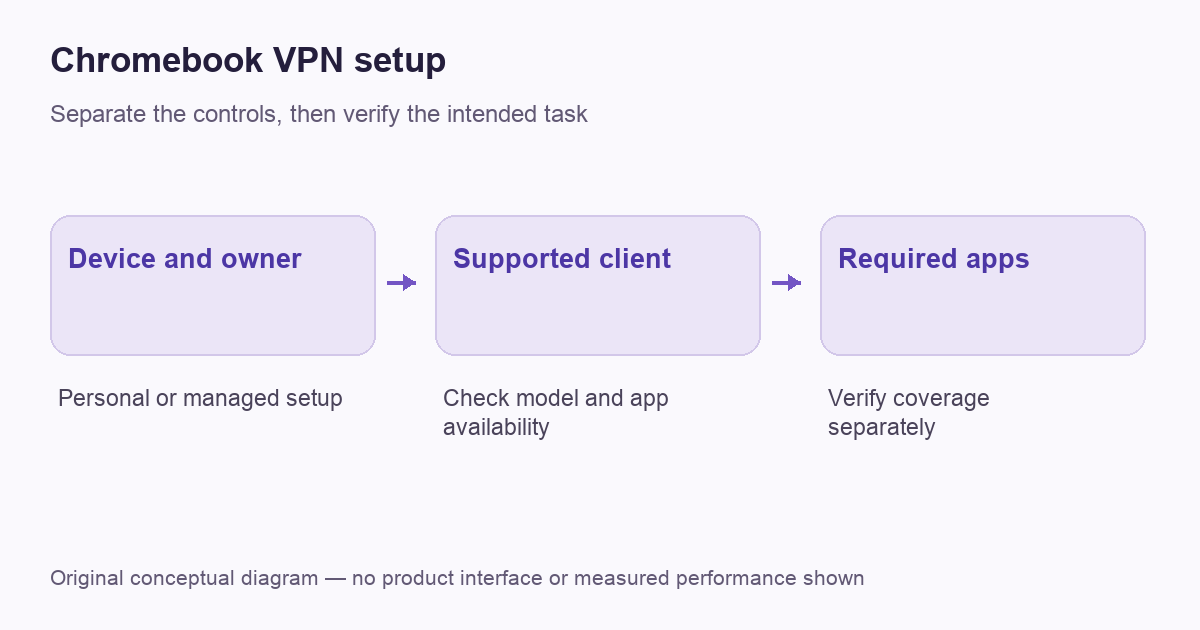
Identify who controls the device
A personally owned Chromebook and a school-issued one can expose different choices even when their screens look similar. Check whether the account or device is managed before installing software. If a setting is controlled by the organization, ask its administrator which approved connection is available.
Do not interpret a missing button as proof that a VPN subscription will unlock it. Buying another service does not create permission to install an app, add a certificate or change a managed profile. A clear ownership check prevents wasted purchases and keeps troubleshooting focused on a configuration you are actually allowed to use.
Choose the supported route
Google’s Chromebook VPN documentation describes supported app and profile arrangements, including Android VPN apps on compatible Chromebooks with the Play Store. It also discusses full and split routing. The practical choice must fit the device and the service, rather than an assumption that every Chrome extension protects every application.
Ask the provider which current client is supported on your model. If it supplies a manual profile, obtain the exact endpoint and authentication information through its official channel. Our general setup guide helps organize those requirements, while this article focuses on the Chromebook-specific decision boundary.
Check Android-app availability before buying
Some Chromebook setups can install Android apps, but availability is not universal. Google’s Android-app guidance explains the Play Store route and device or administrator limitations. Confirm that the intended VPN app is available before committing to a long subscription.
An Android app’s presence in the store is only the beginning. Check the publisher, supported version and provider instructions for ChromeOS. A phone screenshot does not prove that every control behaves identically on the Chromebook. Note which features you need and test them on the actual machine during an appropriate evaluation period.
Keep browser-only coverage distinct
A browser tool can be appropriate when the task is confined to supported browser activity. It should not be assumed to cover a separate Android app, another browser or a local development environment. The scope belongs to the particular product and route, not merely to the fact that the icon appears near the address bar.
Write down the applications you intend to include. A web page, a video application and a work resource may use different arrangements. Our VPN-versus-proxy explanation provides the broader coverage comparison. Do not use one browser’s changed public address as the entire Chromebook’s verification result.
Add the connection using current instructions
Follow the provider’s Chromebook setup path and the settings available on your device. Google describes adding connections through ChromeOS network settings and following the installed client’s prompts. Menu names and options can differ with software, supported apps and management, so avoid mixing steps from several unrelated tutorials.
Use only the endpoint, profile and identity material supplied for your account. If a certificate is required, obtain it through the approved process. Do not import a certificate from a forum simply because it resembles the filename in a guide. The identity configuration needs to belong to the service you are deliberately connecting to.
Verify the apps rather than just the badge
After connecting, perform a small ordinary task in the application you mean to cover. For a personal internet-exit VPN, compare an appropriate public-address observation from that app. For a work route, use the administrator’s approved internal resource. The expected outcome should match the purpose of the connection.
Then inspect intentional exclusions or split routes. A directly connected application may be working as configured, while a protected browser check says little about an untested app. Our verification guide explains how to keep the observation and conclusion aligned. It does not turn one successful test into proof of complete anonymity.
Understand always-on and connection blocking
Google documents always-on and blocking controls for supported Android VPN arrangements on Chromebook. Their availability and effect need to be checked on the actual device and app. Maintaining a connection and deciding what happens without it are related but separate requirements.
If blocking stops access while the tunnel is unavailable, record that state before changing the policy. On a managed machine, consult the administrator. On your own device, use the supported recovery procedure and keep the original settings. Do not remove a required protection merely to make a failed setup look connected again.
Prepare for local devices and work resources
Printing, casting and access to local devices can expose a routing decision that ordinary web browsing does not reveal. Record which resource fails and whether it is local or remote. A global change to the VPN or DNS configuration is a poor first response to one printer problem.
Use the provider’s documented local-access or split-routing option if appropriate and permitted. Keep the exception narrowly tied to the task. If the connection is for work, the administrator should decide the required route. The split-tunneling guide explains the trade-off without promising identical controls across clients.
A worked example: three applications, one assumption
A Chromebook owner might use a browser page, an Android application and an organization-provided work tool on the same machine. A changed public address in the first does not establish the configuration of the other two. Start by listing which product provides the route and which applications its documentation says are included.
If a school administrator controls the work connection, keep that managed requirement separate from a personal browsing experiment. A missing installation option should be resolved through the administrator rather than a reset or an unapproved account. For a personal device, test one ordinary task in each required application and record the result. The point of this example is not that the applications must always use different routes. It is that their coverage needs to be established rather than inferred from a single familiar browser badge.
A Chromebook purchase checklist
| Before paying | Why it matters |
|---|---|
| Device ownership and management checked | A subscription cannot override installation policy |
| Supported client confirmed | A generic Android claim is not a model-specific setup plan |
| Required apps and routes listed | Browser activity may not represent every application |
| Recovery and billing understood | A usable connection and a suitable commitment both matter |
If a personal VPN is appropriate, compare supported apps and full subscription terms before focusing on a headline monthly equivalent. The offers below are consumer-plan options, not a claim that they bypass managed-device restrictions or work on every Chromebook. Confirm current ChromeOS support with the provider for the device in front of you.
Cover: AI-generated editorial illustration, not a product screenshot or evidence of testing. The inline diagram is original conceptual guidance.
Does NordVPN work on your Chromebook? Compare the route before the brand
NordVPN’s current Chromebook guidance lists an Android application, a Chrome extension and a VPN-enabled router as three routes. It warns that some older models may not support the Android app. A Lenovo or Asus badge alone therefore does not establish compatibility: check the actual model, available Play Store and management policy before paying.
| NordVPN route | What the current guidance says | Your practical check |
|---|---|---|
| Android application | Install through Google Play where supported, open the app and sign into the account. | Confirm availability on this Chromebook, then check the applications you actually need. |
| Chrome extension | Install through the Chrome Web Store and sign in; the provider limits its coverage to Chrome traffic. | Do not use a changed browser address to claim that separate applications are covered. |
| VPN-enabled router | Use the provider’s router instructions with a compatible setup. | Identify the network using that router; a different Wi-Fi connection does not inherit it. |
The first useful question is which traffic needs coverage. For a browser-only task, an extension may fit the requirement. If you also depend on an Android app or another environment, write that down separately and verify the chosen route. Our browser extension comparison explains the scope distinction, while the router setup guide covers compatibility and routing decisions.
ChromeOS supporting a protocol does not establish that a particular NordVPN account supplies the profile or credentials for it. Google’s built-in VPN instructions describe platform capabilities; provider instructions establish the supported service configuration. Keep those two checks separate instead of improvising an endpoint, shared key or certificate from an old tutorial.
On a school or work device, ask the administrator when installation or connection settings are controlled. A second subscription will not resolve that policy boundary. On your own device, confirm the selected product’s availability before taking a long introductory offer. Compare the current NordVPN plan terms, and use the inherited offer below only if its device support and payment commitment suit your needs.
Check current NordVPN offers and verification dates →
These are documented setup options, not VPNBlade tests of every Chromebook model or promises of access to every streaming service. Check connection controls and optional features against the current app and device; the route table is a starting point for that decision, not a guarantee of identical behavior across clients.
YOUR EXPERIENCE MATTERS
Was this article useful?
Genuine reader helpfulness ratings. These do not measure VPN performance or verify a purchase. Only moderated submissions count. Ratings may reflect earlier versions of this information.