
Post
Do you need a VPN for Kodi? Installation routes and limits
Kodi does not inherently require a VPN. Separate the player, host routing, approved home-media access and a consumer service before installing anything.
In this article
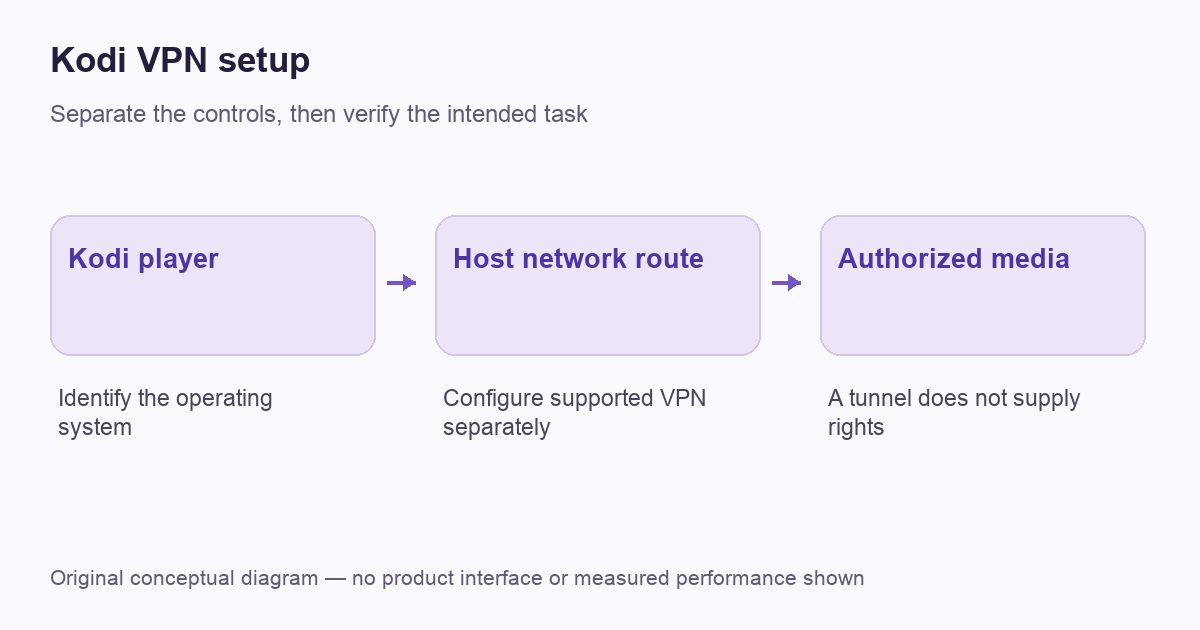
Kodi does not inherently require a VPN, and a VPN connection is normally a routing decision for the device running Kodi. Begin by identifying the host operating system and the legitimate media source you intend to use. Installing an unfamiliar add-on is not a necessary first step toward configuring a supported network connection.
This guide separates Kodi playback, the host’s network route and the VPN service. VPNBlade has not tested every Kodi build or third-party add-on. A VPN does not supply media rights, make an untrusted source safe or guarantee that a particular stream will play.
Start with Kodi’s own position
Team Kodi’s VPN policy says Kodi does not need a VPN to be used as intended. It also distinguishes private-network uses from commercial services and directs VPN-related support to the relevant provider. That is a useful correction to articles that present a subscription as a mandatory Kodi component.
Decide whether there is a separate networking purpose. You may need approved access to media on your own home network, or a personal VPN route for a device used on an unfamiliar access network. Those are different requirements. Neither should be confused with a claim that Kodi itself creates an encrypted commercial tunnel.
Identify the device running the player
Kodi can run in different device environments, so the installation route belongs to the actual host. A Windows computer, an Android-based device and a purpose-built media setup may expose different VPN options. Confirm the operating system and current provider support before following a general tutorial.
Our television setup guide explains platform differences, and the Firestick comparison distinguishes Fire OS from Vega OS. A set of instructions for one platform does not prove that an APK, add-on or desktop application will work on another.
Prefer the supported host-level route where appropriate
When the host supports the provider’s official application, configure that application according to its own instructions and confirm which traffic it includes. Then open Kodi and test an ordinary authorized task. The player and the tunnel remain separate pieces of software with separate status information.
A compatible router can be another route when the host lacks a suitable client, but the router must support the required VPN-client configuration. Follow the exact model and provider guidance rather than assuming that VPN passthrough is enough. Our router walkthrough covers that separate task and its maintenance trade-offs.
Do not let an add-on claim replace a trust check
A name containing VPN does not establish who operates the service, what software it installs or which traffic it covers. Inspect the official source and support information before providing credentials. Do not copy account details into an unrelated add-on simply because a guide presents it as the easiest path.
Team Kodi’s forum policy also places limits on commercial VPN promotion and support within its forum. Our consumer information here is independent of that forum and is not a Team Kodi endorsement. If the issue belongs to a paid provider’s connection, use that provider’s official support channel with the host and app details.
Keep home-media access distinct from a consumer exit service
A personal VPN server you administer for approved access to your home network serves a different purpose from a commercial subscription that supplies an internet exit. The latter does not automatically give Kodi access to private storage at your house. It needs an actual path and authorization to reach that resource.
Before configuring remote playback, identify the resource owner and the supported access arrangement. Our remote-access guide explains the identity and routing questions. Keep it separate from choosing a consumer subscription solely because the same word VPN appears in both descriptions.
Verify connection and playback as separate outcomes
First verify the intended host route using the provider’s supported method. A browser’s public-address observation can help, but check whether the browser and Kodi use the same inclusion rule. If an app exclusion is configured, a browser result may not represent the player’s connection.
Then try a small media task you are authorized to use. If the VPN reports connected but playback fails, distinguish source availability, application configuration and network reachability. Our verification workflow and troubleshooting guide help keep those observations separate.
Do not treat network privacy as content permission
Kodi’s forum and piracy rules describe the project’s support boundaries. A VPN service does not grant a licence for media or change a source’s trustworthiness. This article does not recommend repositories that promise unauthorized paid content or instructions to evade an access requirement.
Use sources and add-ons whose purpose and maintenance you understand. A connection that changes your public exit still leaves account identity, software permissions and the media provider’s rules relevant. If an old guide claims that a VPN makes every Kodi activity anonymous and safe, that claim is broader than the route alone can establish.
Preserve local-network functions
A media device may also need local storage, a remote-control application or another household device. Note which local functions matter before changing the route. If one stops working, identify whether the devices remain on the intended local network and whether a documented local-access setting applies.
A broad exception can change more traffic than the one feature you are trying to restore. Keep any supported change tied to the actual task. The split-tunneling explanation describes that coverage trade-off; it does not promise the same controls on every Kodi host.
A worked example: reaching your own media library
Imagine a traveller who wants approved access to media stored on their own home network. A commercial VPN that supplies a public internet exit does not automatically connect the player to that private storage. The required arrangement must actually provide an authorized route to the home resource.
By contrast, someone playing a legitimate source already reachable from the host may have no separate remote-network requirement at all. In either case, identify the source and route before installing extra software. If playback fails only after a routing change, preserve the original configuration and compare the same ordinary task. Do not assume that the answer is another repository, a stronger anonymity slogan or a second subscription. The example separates the player, the media entitlement and the network path so that a useful support request can describe the failing part.
Choose a subscription only for a defined requirement
If a personal VPN is useful for the host’s routing needs, compare current device support, connection controls and the complete bill. Do not choose purely from a list of claimed streaming unlocks. A long prepaid term is a commitment even when the monthly equivalent is small, and refund eligibility can depend on the purchase channel.
The offers below are optional consumer plans for a separately identified VPN need. They are not Kodi components, official Kodi recommendations or proof that a media source will work. Confirm the installation route and support before paying, then keep a small record of the actual setup so it can be maintained or removed cleanly later.
Cover: AI-generated editorial illustration, not a product screenshot or evidence of testing. The inline diagram is original conceptual guidance.
Before paying: check the add-on, host and route separately
A useful Kodi VPN shortlist starts with a supported operating-system client, not an old promise to unlock every add-on. NordVPN’s current Kodi instructions describe configuring its app or a supported manual connection on the host, connecting, then launching Kodi. The provider says its VPN add-ons do not currently work on Kodi. Do not transfer that statement into a claim about every independent add-on or every VPN company.
Check compatibility at the repository layer
Kodi’s official repository documentation explains that add-ons are organized for the relevant Kodi release. Installing a ZIP manually makes compatibility verification the user’s responsibility. If an add-on fails after a Kodi upgrade, confirm its supported version and origin before buying a different VPN. A network subscription cannot repair an incompatible add-on.
A repository’s name and an add-on’s display name are separate identifiers. Keep both in your setup record, along with the Kodi and host versions. That makes it easier to distinguish a software-update problem from a connection problem. Do not enter a VPN password into an unfamiliar add-on to test a claim from an archived tutorial.
Kodi fault-isolation worksheet
| Observation | Useful next check | What it does not prove |
|---|---|---|
| Kodi cannot open a local media file | Confirm the file is accessible and supported on that host | That an internet VPN subscription is missing |
| One add-on fails after an upgrade | Check its origin, version compatibility and maintained support information | That changing VPN countries will repair its code |
| Public browsing works, but a home library is unavailable | Check the authorized path to the private resource | That a commercial internet exit also provides home-network access |
| The problem appears only with the VPN connected | Record the host’s route and relevant supported inclusion or local-access setting | That every Kodi source is blocked or the provider always fails |
This worksheet is diagnostic planning, not the result of VPNBlade testing those failures. On a managed device, follow the administrator’s procedure rather than disconnecting a required tunnel. For an ordinary personal setup, compare the same authorized task and change one setting at a time. A broad reset may erase useful evidence without identifying the failing component.
Team Kodi’s forum does not recommend commercial VPNs or provide support for problems caused by them. Take connection-specific evidence to the VPN provider; take a reproducible player or add-on issue to its appropriate maintainer within their support rules. Our streaming comparison can help evaluate an optional consumer plan once its purpose is clear. The live offers above do not make Kodi a paid service or guarantee uninterrupted playback.
YOUR EXPERIENCE MATTERS
Was this article useful?
Genuine reader helpfulness ratings. These do not measure VPN performance or verify a purchase. Only moderated submissions count. Ratings may reflect earlier versions of this information.