
Post
Does a VPN block ads? Understand filtering and its limits
Compare VPN routing with DNS and browser ad filtering. Check feature tiers, platform support, exceptions and limits before buying a security bundle.
In this article

A VPN tunnel does not inherently remove advertisements. Some VPN products include separate DNS filtering, browser tools or application-layer blockers, but the behavior belongs to that feature and its supported plan or platform. A changed public IP address and a filtered ad request are different outcomes.
VPNBlade has not independently measured the providers’ ad-blocking effectiveness for this article. The useful comparison is the documented filtering method, coverage, exceptions and practical limits. Do not treat a claim about one desktop feature as a promise that every advertisement disappears from every app.
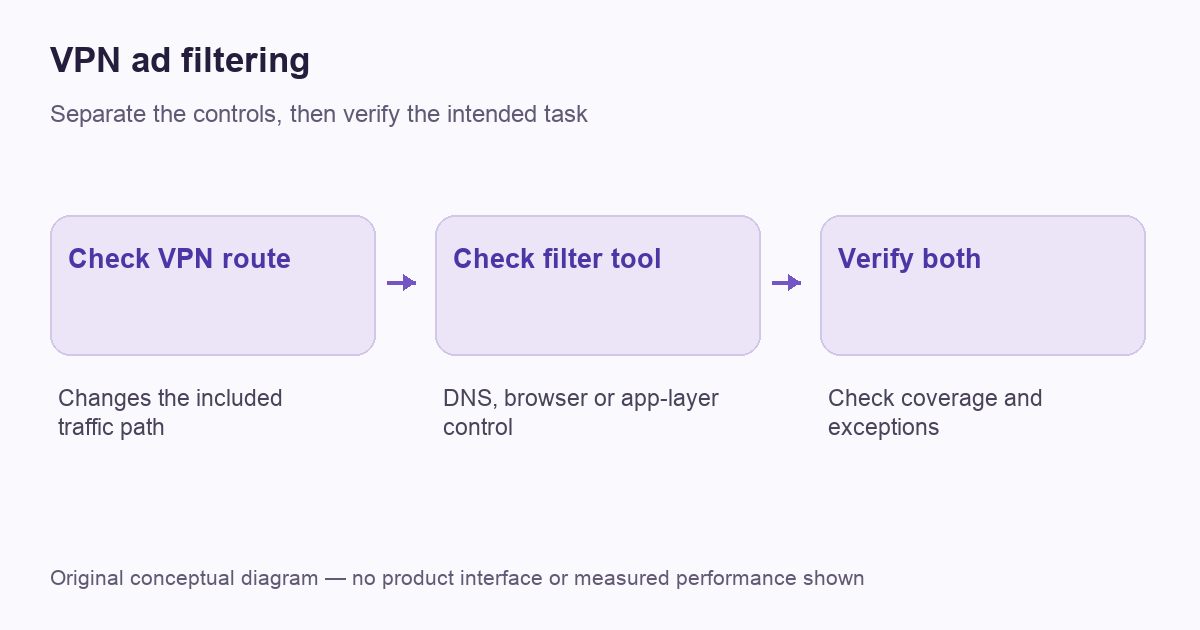
Separate routing from filtering
The tunnel changes the route used by included traffic. Filtering decides whether a particular request, domain or page element is handled differently. A product can combine the two, but that combination does not make them the same function. Turning on one control may leave another disabled.
Start by naming the result you want. A page banner, a third-party tracking request, a cookie notice and an in-app video advertisement may involve different mechanisms. A broad label such as ad blocker does not establish identical treatment of all four. Our VPN explanation covers the routing layer separately.
Understand domain-based filtering
Cloudflare’s DNS explanation describes translating domain names to addresses. A domain-based decision should not be confused with a browser tool that can process additional page information.
A domain-based filter makes a decision about a requested hostname. That is different from understanding every piece of content delivered by a site. If an advertisement and desired material depend on the same permitted host, a simple domain decision may not distinguish them in the way the reader expects.
MDN’s URI-path explanation distinguishes the resource path from the authority in a URL. The practical point is to ask what level the product actually filters rather than assuming every network filter sees and edits the full page. Check the provider’s documented method and scope.
Check the exact provider feature and tier
NordVPN’s current Windows ad-blocker guide specifies supported paid tiers and describes per-domain controls. Its broader feature explanation distinguishes DNS-based protection from application-layer tools. Those are product-specific descriptions, not a reason to assume that every basic VPN plan includes the same blocker.
Read the actual requirement for your device and package before purchasing. Product names and included features can change. A deal card advertising an inexpensive VPN subscription is not, by itself, confirmation that the particular ad-filtering feature you want is included.
Keep browser extensions and native apps apart
Surfshark’s current CleanWeb guide describes the browser-extension interface, its ad and pop-up controls, and a website bypass list. Its platform feature page separately describes native-app and extension availability. Do not transfer every extension capability to a phone application or television.
The browser’s own tools can also be independent. Opera’s help lists ad blocking, tracker blocking and VPN controls separately. A cleaner page does not prove that a tunnel connected, and a VPN badge does not prove that every filtering option is active.
Expect exceptions and breakage to need context
A trusted site’s sign-in, payment flow or embedded feature can behave differently when a required request is filtered. The right first step is to identify which control and request category are involved. Disabling every protection on the entire device is a poor way to isolate one broken page.
Use the product’s documented, narrow exception mechanism where appropriate and keep a record of the change. An exception is a deliberate trade-off for a known task, not an instruction to trust every request from every site. Restore or review temporary changes once the task is complete.
Do not promise universal video-ad removal
Providers may describe video-ad blocking on selected services or platforms. Treat that as the current product claim, not a permanent guarantee that applies to every app, account and delivery method. Services and clients change, and the supported filtering mechanism matters.
Evaluate the actual application you use during an appropriate trial or evaluation period. Save the app, extension and browser versions with the observation. VPNBlade has not produced a current success-rate ranking here, so the article does not label one provider a universal winner for all video ads.
Distinguish ads from malware protection
A filter that blocks selected advertising or malicious domains does not establish that every downloaded file is safe. File scanning, account protection and network routing solve different problems. A bundled product may include several tools, but each one has its own coverage and limitations.
Our VPN-versus-malware protection guide explains that boundary. Do not use a reduction in visible ads as proof that the device is clean or that a suspicious download can be opened safely. Judge the tool by the problem it is designed to address.
Build a small filtering comparison
Choose a harmless ordinary page and note which filter is enabled, which browser or app is involved and whether a site exception exists. Compare the page’s useful functions as well as the number of visible ads. A page that appears empty because essential content failed is not automatically a better result.
Keep the VPN connection state in a separate column. If your goal includes a routed private connection, verify it through our VPN-checking workflow. Filtering results alone do not establish the public exit or the DNS path used by every application.
A worked example: one host, different page content
Consider a fictional site that serves both wanted material and an advertisement from the same hostname. A domain-only decision does not receive a different DNS name merely because the resource path changes. A tool with additional browser or application-layer filtering may offer a different capability, but that must be checked in its own documentation.
This is why a generic DNS-filtering claim should not be stretched into a promise that every video ad or page element disappears. Ask which component handles the request, where it runs and what an exception changes. If a page stops working, record whether the issue belongs to the domain filter, browser blocker or tunnel rather than disabling everything together. The example is deliberately fictional and illustrates the decision boundary; it is not a result from testing a provider against a particular streaming service.
Choose the feature before the discount
| Requirement | Check before paying |
|---|---|
| Filtering inside one browser | Supported extension and site exceptions |
| Domain filtering for routed traffic | Documented method and connection requirements |
| A particular desktop blocker | Exact platform, plan and current feature name |
| File or endpoint protection | The separate security product and its coverage |
The offers below are general paid VPN options, not promises that every displayed plan contains every blocker described above. Confirm the required feature, initial payment, renewal and refund scope on the current provider page. A clearly supported tool for your actual browser is more useful than an inexpensive bundle whose relevant component is unavailable on your device.
Cover: AI-generated editorial illustration, not a product screenshot or evidence of testing. The inline diagram is original conceptual guidance.
YOUR EXPERIENCE MATTERS
Was this article useful?
Genuine reader helpfulness ratings. These do not measure VPN performance or verify a purchase. Only moderated submissions count. Ratings may reflect earlier versions of this information.