
Post
Opera GX VPN: turn it on and understand what it covers
Enable Opera GX's available VPN feature and distinguish browser coverage from device-wide apps, search exceptions and separate ad blockers.
In this article

Opera’s free browser VPN and a device-wide VPN app have different coverage. For Opera GX, begin with the current desktop browser settings and the feature available in your installed build. Turning on a browser feature should not be assumed to protect a separate game client, messaging application or every process on the computer.
VPNBlade has not benchmarked Opera GX or independently audited its VPN service. This article explains the setup and scope questions using Opera’s current documentation. It separates the free browser feature from paid products and from the browser’s independent ad- and tracker-blocking controls.
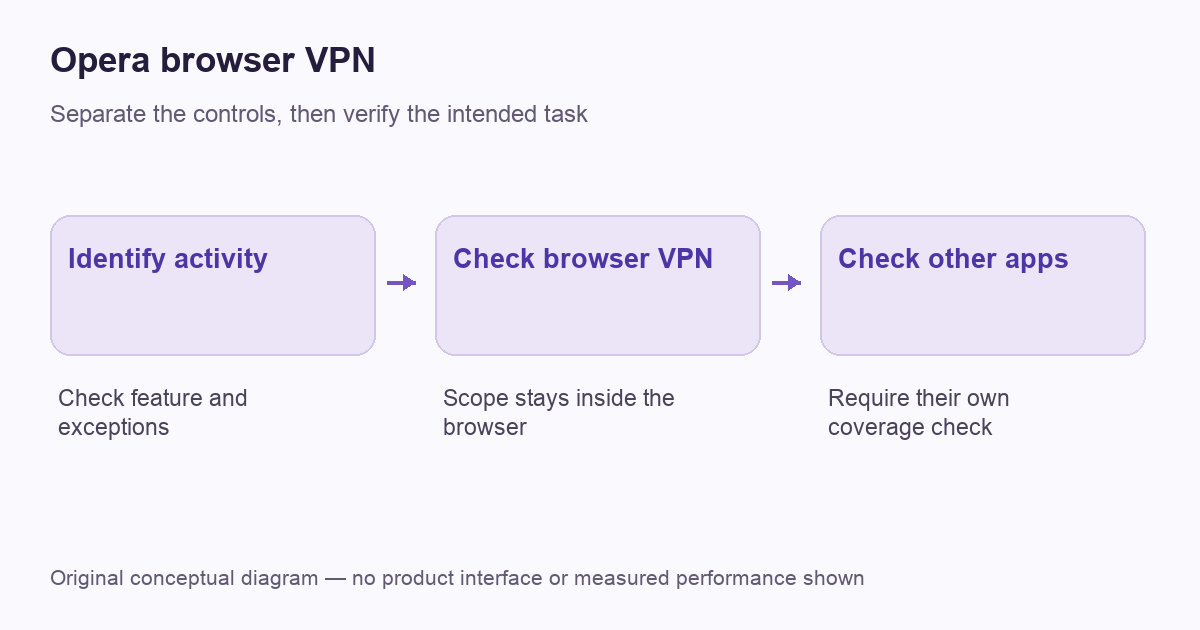
Find the feature in the current browser settings
Opera’s feature guide describes enabling VPN in settings and using the address-bar VPN control. Browser layouts change, so searching the installed browser’s settings for VPN is a better starting point than forcing a years-old screenshot to match the screen in front of you.
Confirm that the browser and platform actually offer the feature you want. If it is missing, check Opera’s current help for that build rather than installing an unrelated extension that uses a similar name. A desktop GX tutorial should not be applied automatically to a differently named mobile browser.
Turn on the connection and inspect its state
After enabling the feature, use its VPN control to connect and inspect the available location choice. Follow the current interface and help text. Record whether the browser reports a connection, which option is selected and whether any browsing exceptions are enabled.
Do not assume that enabling the setting once proves continuous coverage forever. Recheck the visible state after a browser update, network change or configuration adjustment. If the browser cannot connect, preserve the exact error and investigate a supported recovery path instead of disabling system security controls indiscriminately.
Understand the free feature’s boundary
Opera’s current product page distinguishes its free protection inside the Opera browser from VPN Pro’s wider device coverage. That is the key buying distinction. A successful public-address check in Opera does not establish the route used by another browser or a standalone game.
List the applications that need coverage before deciding whether the browser feature is enough. If your task is confined to supported browsing, the boundary may fit. If you need a separate application to use a VPN, evaluate a supported device-level arrangement and verify that application. Our VPN-versus-proxy guide explains why application scope matters more than the icon’s name.
Check bypass and search behavior
Opera’s FAQ explains a setting for bypassing VPN for default search engines so results can remain relevant to the ordinary location. Such an exception changes the route for the activity it describes. Inspect the current setting instead of treating a different search result location as automatic proof of failure.
Write down deliberate exceptions before running a comparison. Test the browser activity you actually intend to cover, and distinguish a location estimate from a public-address observation. A page can also use an account, stored preferences or permitted location information. The IP-address explanation keeps those signals separate.
Do not confuse VPN with ad blocking
Opera documents ad and tracker blockers as browser features alongside VPN. Their controls and exceptions are separate. A page showing fewer ads does not prove that the VPN connected, and a connected VPN badge does not establish that every ad request was filtered.
Use the particular control that matches the problem. If a trusted page breaks, investigate a narrow site exception or the relevant filtering setting according to current documentation. Our ad-filtering guide explains the distinction between changing an exit route and blocking selected requests.
Keep desktop and mobile instructions apart
Opera publishes separate mobile help, including Android VPN feature guidance. It describes version or country-dependent availability and the scope of browsing protection. That does not make every desktop GX setting or screen identical on a phone.
Check the actual app name and platform before interpreting a tutorial. A similarly branded browser can have a different menu, account arrangement or supported feature. For phone-wide requirements, compare a supported mobile VPN app rather than assuming that a browser-only connection protects unrelated apps.
Test a modest browsing task
Use the same browser and an ordinary page to observe the public exit before and after an authorized change. Keep the selected location and any exceptions in the record. Treat the result as evidence about that tested request, not as an audit of the operator’s privacy policy.
Our verification workflow explains IP and DNS observations and their limits. If another application still shows an ordinary route, first ask whether it was ever within the browser feature’s scope. That is a coverage question, not necessarily a broken VPN.
Evaluate privacy claims at their actual scope
A provider’s description of encryption or logging is a claim about its service and policy. It does not mean that websites cannot identify a signed-in account or that a browser permission becomes irrelevant. Review the current policy and evidence without expanding it into a promise that every form of tracking disappears.
Also distinguish a free browser feature from a free trial of a paid device-level product. Check current terms, supported platforms and renewal before entering a subscription. A product can be appropriate for one browsing task without being a complete replacement for a separate VPN client.
A worked example: browser browsing and a separate game
Imagine Opera GX loading a page through its free browser feature while a standalone game runs beside it. A changed exit observed in the browser does not establish the game’s route. That is not necessarily a malfunction: the free feature’s documented browser scope is the first boundary to check.
If the game is the task that requires a supported personal VPN, investigate a device-level client and its current inclusion rules. Do not buy a service solely to make a browser badge appear, or assume that changing the browser’s virtual location creates a different entitlement inside the game. Keep the test in the relevant application and record the intended outcome. This example does not describe a VPNBlade performance test. It shows how a clear application boundary can prevent both unnecessary purchases and misleading claims about coverage.
When should you compare a full VPN app?
| Your need | Question to answer |
|---|---|
| Only supported Opera browsing | Does the free browser feature cover this activity and its exceptions? |
| A standalone application | Which supported device-level client includes its traffic? |
| Several household devices | What allowance and app support apply to the chosen plan? |
| Work access | Which organization-approved connection is required? |
The paid offers below are optional alternatives for a defined personal device-level need. They are not required to enable Opera’s free browser feature. Compare the full initial bill and supported apps, then choose the smallest arrangement that covers the task you actually have.
Cover: AI-generated editorial illustration, not a product screenshot or evidence of testing. The inline diagram is original conceptual guidance.
YOUR EXPERIENCE MATTERS
Was this article useful?
Genuine reader helpfulness ratings. These do not measure VPN performance or verify a purchase. Only moderated submissions count. Ratings may reflect earlier versions of this information.